


Sure, you can handle it. But should you?
Let our experts manage the tech maintenance while you focus on your business.
Let our experts manage the tech maintenance while you focus on your business.
Installation and Configuration
Microsoft Azure Principal Resolution Service
Introduction
Using the Microsoft Azure Principal Resolution Service, groups in Microsoft Azure can be resolved. These groups are used by many Microsoft services, such as SharePoint Online, Teams, or Stream. If you have set up a connector for any of these data sources, you should also use the Microsoft Azure Principal Resolution Service.
Hint: Microsoft Entra ID (ME-ID) is the new name for Microsoft Azure Active Directory (Azure AD). You can manage your Microsoft Graph instance here: Microsoft Entra - Microsoft Entra admin center.
For more information about what Microsoft Entra ID is and what changes to note with the name change, see What is Microsoft Entra ID? - Microsoft Entra | Microsoft Learn and New name for Azure Active Directory - Microsoft Entra | Microsoft Learn.
Prerequisites
In order for the Principal Resolution Service to resolve Microsoft Azure groups, a new or existing Microsoft Azure application is required that has permissions to read Microsoft Azure groups.
The Microsoft Azure application must meet the following requirements:
- Available Client Secret
- An expiration of 6 to 12 months is recommended so that the secret is changed regularly.
- Attention: When generating the client secret, please note that the secret in the “Value” column is essential for creating the credentials in Mindbreeze InSpire. Make a note of this value immediately after generating the client secret, as the value will no longer be displayed in full when you leave the area.
- Available Client Certificate
- Alternative to Client Secret. See capital: Certificate-base Authetication
- Granted access rights
- Group.Read.All
- User.Read.All
The creation of a new application is carried out in Microsoft Entra - Microsoft Entra admin center. For more information, see the following links:
- Registration of a new application: How to register an app in Microsoft Entra ID - Microsoft identity platform | Microsoft Learn
- Creation of a Client Secret: Add and manage app credentials in Microsoft Entra ID - Microsoft identity platform | Microsoft Learn
- Granting of access rights: Web API app registration and API permissions - Microsoft identity platform | Microsoft Learn
Configuration
This chapter explains how to configure the necessary Principal Resolution Service in a Quickstart Guide. If you need additional information about what a Principal Resolution Service is, how to perform basic cache configuration, and what other configuration options are available, please go to Installation & Configuration - Caching Principal Resolution Service.
Quickstart Guide
Step 1: Creation of the Principal Resolution Service
In the “Indices” tab, use an existing service or create a new service with the following settings:

Setting | Entry |
Display Name | Example: Microsoft Azure Principal Resolution Service |
Service | Microsoft Azure Principal Resolution Service |
Step 2: Creation of the Credential
Next, you need a suitable credential. If you have already configured a credential with the according “Client Secret” of your Client Application in Microsoft Azure (Microsoft Entra ID), you can use this credential. If this is not the case, you must create a new credential in the “Network” tab. You can choose to either create a password credential or a certificate credential.
Option 1: Password credential
Entry | |
Name | Example: Microsoft Azure App Secret |
Type | Password |
Password | The password required is the Client Secret of your client application in Microsoft Azure (Microsoft Entra ID). Example: Me6nq~agvbMMuz955HPQuO9WkYfK3qsOpuQmbxox |
Option 2: Certificate credential
For detailed instructions, see the chapter .
Step 3: Connecting the Principal Resolution Service with the created application and the credential
Once the credential has been created, return to the service you created in the “Indices” tab. The following settings are now required in the “Connection Settings” section:
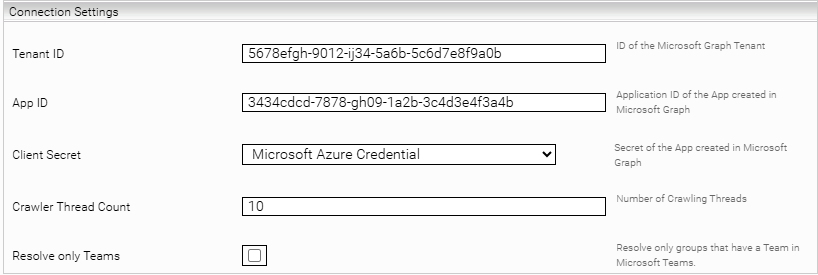
Setting | Entry |
Tenant ID | Example: 5678efgh-9012-ij34-5a6b-5c6d7e8f9a0b |
App ID | Example: 3434cdcd-7878-gh09-1a2b-3c4d3e4f3a4b |
App Certificate | Example: Client App Certificate |
Client Secret | Example: Microsoft Azure Credential |
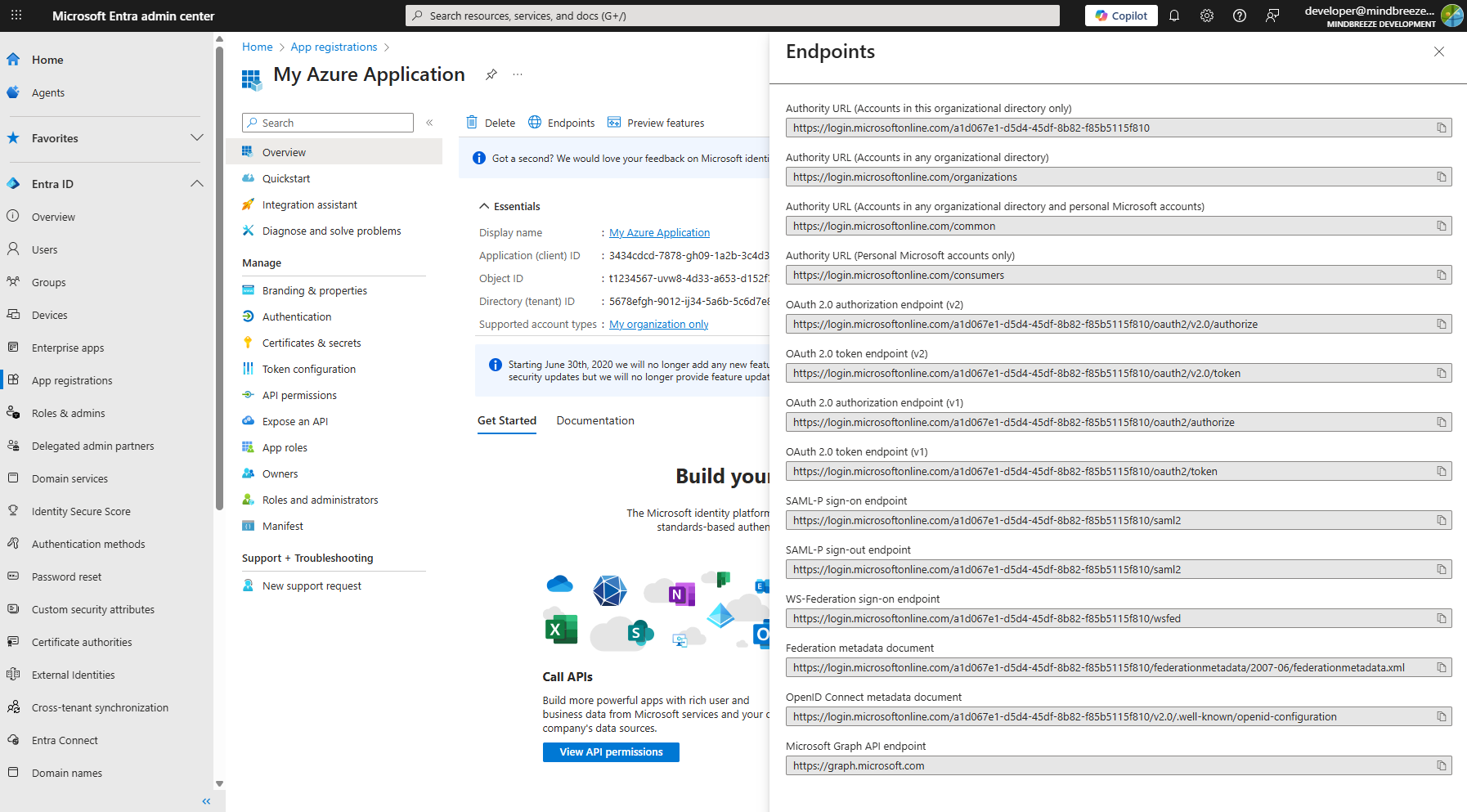
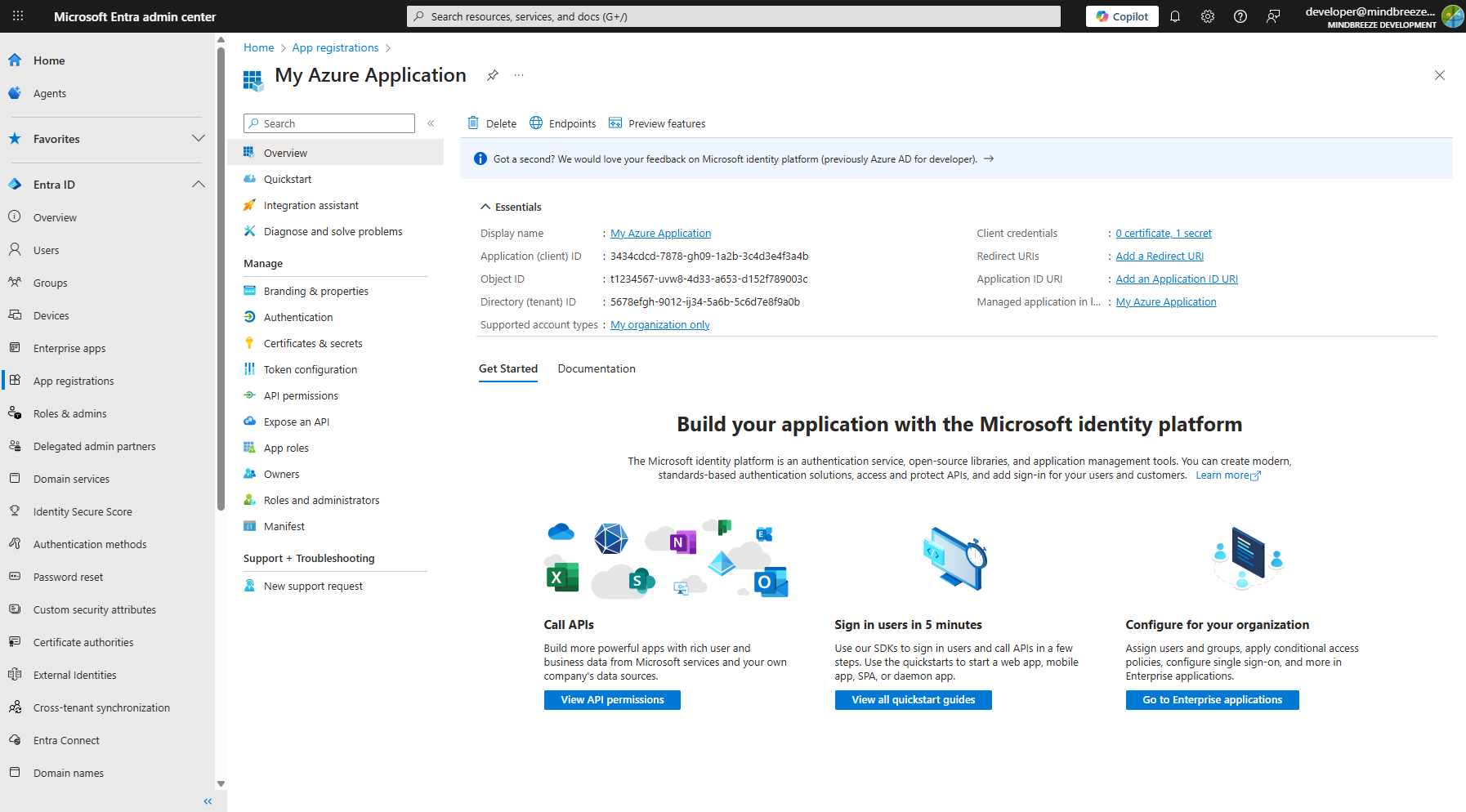
Hint: The “Tenant ID” and “App ID” can both be found in the ‘Overview’ section of your application. In the “Essentials” section, the Tenant ID is listed as “Directory (tenant) ID” and the App ID as “Application (client) ID.” Please note that the App ID in your service and the Client ID of the created credential should be identical.
Step 4: Connecting the index with the Principal Resolution Service
Finally, the Principal Resolution Service that has been created must now be connected to the desired index. To do this, open the index and go to the “Data Sources” section. Set the following:
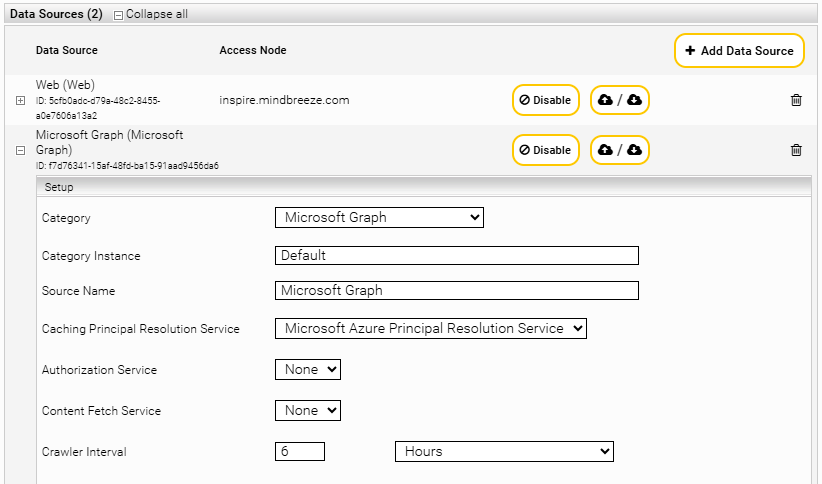
Setting | Entry |
Category | Microsoft Graph |
Caching Principal Resolution Service | Example: Microsoft Azure Principal Resolution Service |
As a final step, save the changes you have made. The Microsoft Azure Principal Resolution Service is now connected to your application and fully configured.
Available settings
Section „Connection Settings“
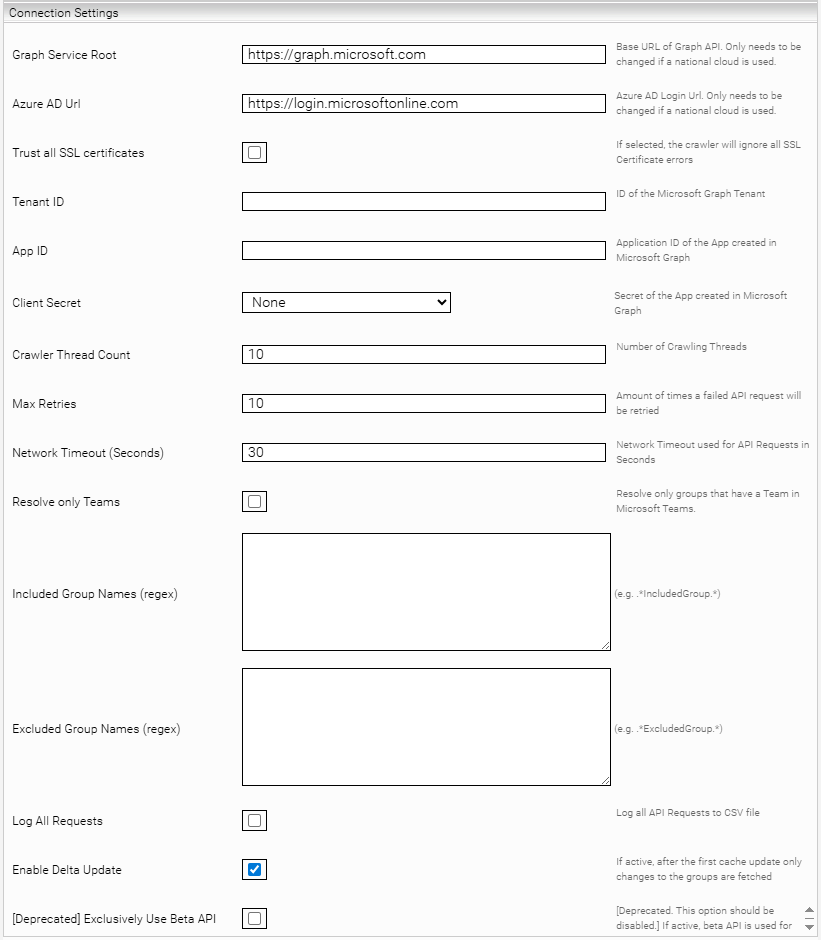
Setting | Description | Default setting/Example |
Graph Service Root (Advanced Settings) | The endpoint or URL of the Microsoft Graph API. Only change this setting if you want to use a national Microsoft cloud, such as the cloud for the US government. A list of all available national Microsoft Graph endpoints can be found in the chapter Microsoft Graph. | Default value: https://graph.microsoft.com |
Azure AD Url (Advanced Settings) | The endpoint or URL for the Microsoft Entra ID cloud. Only change this setting if you want to use a national Microsoft cloud, such as the cloud for the US government. A list of all available national Microsoft Entra ID endpoints can be found in the chapter Microsoft Entra ID. | Default value: https://login.microsoftonline.com |
Trust all SSL certificates (Advanced Settings) | Allows the use of insecure HTTPS connections, for example, for test systems. Attention: Do not enable this setting in the production environment. | Default setting: Deactivated |
Tenant ID* | The Tenant ID of the Microsoft Entra ID application. Hint: You can find the “Tenant ID” in the “Overview” screen of your application in the “Essentials” section as “Directory (tenant) ID.” | Example: 5678efgh-9012-ij34-5a6b-5c6d7e8f9a0b |
App ID* | The App ID of the Microsoft Entra ID application. Hint: You can find the “App ID” in the ‘Overview’ screen of your application in the section “Essentials” as “Application (client) ID.” | Example: 1234abcd-5678-ef90-1a2b-3c4d5e6f7a8b |
App Certificate | Choose the certificate credential via dropdown menu. See capital Cerfiticate-base Authentication | Example: Client App Certificate |
Client Secret* | The credential created in the Network tab, which contains the created client secret. | Example: Microsoft Azure Credential |
Crawler Thread Count | Number of threads used for processing the groups. | Default value: 10 |
Max Retries (Advanced Settings) | Defines how often the service attempts to download a document when temporary errors (e.g., socket timeouts) occur. If crawling over an unstable network (which causes timeouts), the default setting of 10 is sufficient. If timeouts are caused by an overloaded data source, a value of 0 is appropriate so that the data source is not additionally burdened. | Default value: 10 |
Network Timeout (Seconds) (Advanced Settings) | Defines in seconds how long the service should wait for a response from the website. | Default value: 30 |
Resolve only Teams | If this Principal Resolution Service is only used for Microsoft Teams, we recommend enabling this setting to achieve optimal performance. Enabling this setting will only resolve groups that have an associated team in Microsoft Teams. | Default setting: Deactivated |
Included Group Names (regex) (Advanced Settings) | Defines which groups should be resolved using a regex pattern. The regex pattern must match the group names in order to resolve the desired groups. If this setting is empty, all groups will be resolved. | Example: (Marketing|Sales) |
Excluded Group Names (regex) (Advanced Settings) | Defines which groups should be omitted using a regex pattern. The regex pattern must match the group names in order to exclude the desired groups. | Example: (Devices|Archive) |
Log All Requests (Advanced Settings) | If this option is enabled, all requests against Microsoft Entra ID are written to a log file. Should be enabled for troubleshooting only. | Default setting: Deactivated |
Enable Delta Update (Advanced Settings) | If this setting is enabled, the crawler only retrieves all users from Microsoft Entra ID during the first update. After that, only changes to the user are retrieved. This setting can improve performance. | Default setting: Activated |
[Deprecated] Exclusively Use Beta API (Advanced Settings) | This setting is outdated and should not be enabled. | - |
| ||
Available national endpoints
Microsoft Graph
National Cloud | Microsoft Graph |
Microsoft Graph global service | https://graph.microsoft.com |
Microsoft Graph for US Government L4 (GCC High) | https://graph.microsoft.us |
Microsoft Graph for US Government L5 (DOD) | https://dod-graph.microsoft.us |
Microsoft Graph China operated by 21Vianet | https://microsoftgraph.chinacloudapi.cn |
For more information, see https://learn.microsoft.com/en-gb/graph/deployments#microsoft-graph-and-graph-explorer-service-root-endpoints.
Microsoft Entra ID
National Cloud | Microsoft Entra authentication endpoint |
Microsoft Entra ID (global service) | https://login.microsoftonline.com |
Microsoft Entra ID for US Government | https://login.microsoftonline.us |
Microsoft Entra China operated by 21Vianet | https://login.partner.microsoftonline.cn |
For more information, see https://learn.microsoft.com/en-gb/entra/identity-platform/authentication-national-cloud#microsoft-entra-authentication-endpoints
Certificate-based Application Authentication
App Registration
The creation of a new application is carried out in Microsoft Entra - Microsoft Entra admin center. For more information, see the following link:
- Registration of a new application: How to register an app in Microsoft Entra ID - Microsoft identity platform | Microsoft Learn
Configuration steps in Mindbreeze InSpire
Once an Azure application has been created, the following configuration steps must be performed in Mindbreeze InSpire.
Requirements
- Mindbreeze InSpire has been updated to the Mindbreeze InSpire 26.1 Release or newer.
- Hint: If an older release is being used, the certificate-based authentication will not be available.
- A self-signed or CA-signed certificate (.cer, crt or .pem) is available and is already uploaded to the Azure application.
- Hint: If the .p12 certificate has multiple key pairs, only the first key pair in the certificate file is to be used for Mindbreeze InSpire.
Step 1: Upload of the certificate in Mindbreeze InSpire
To upload the created certificate in Mindbreeze InSpire, go to the Management Center and click on “Configuration” in the side navigation. Then continue to the “Certificates” tab, make sure that the certificate option “SSL” is selected and select the certificate in the format “.p12”. Enter the password, if the certificate is password protected or leave the field empty when the certificate is not password protected. Finally, “Upload” the certificate.
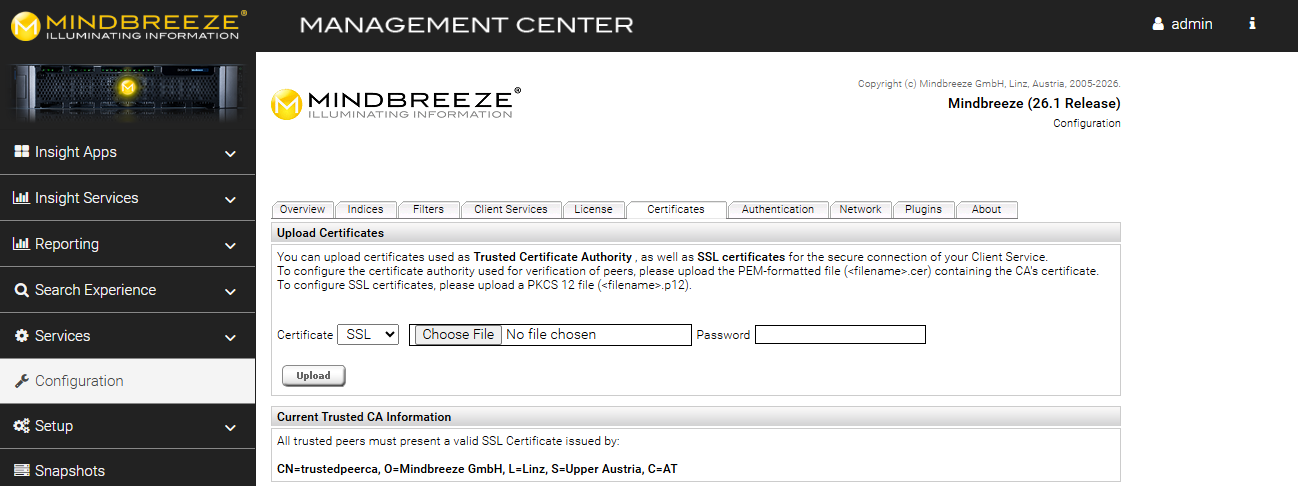
Hint: If the field “Password” is not visible, make sure that Mindbreeze InSpire is updated to the Mindbreeze InSpire 26.1 Release. For more information, see the chapter “Requirements”.
After the successful upload, the certificate will be listed in the section “Available SSL Certificates”.
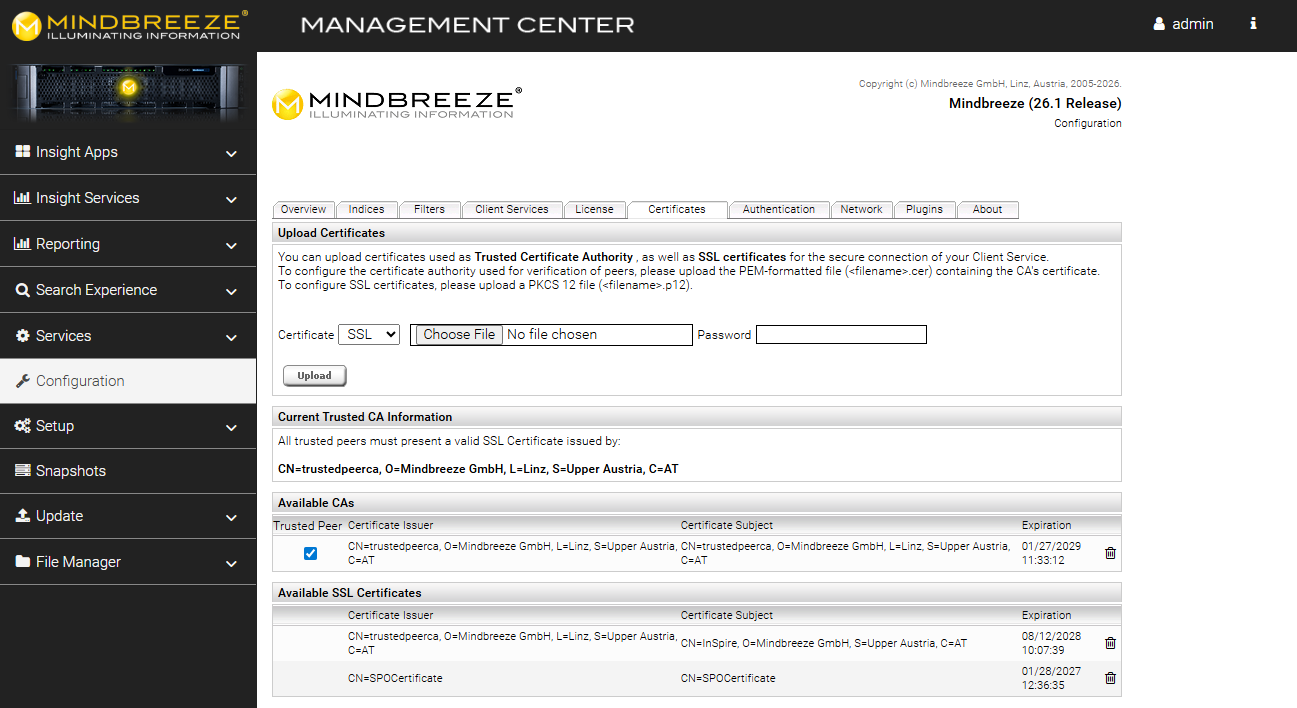
The certificate is now ready to be assigned to services.
Step 2: Creation of the certificate credential
After the successful upload of the certificate in Mindbreeze InSpire, a credential must be created that uses the certificate for authentication.
Go to the “Network” tab and create a new credential with the following settings:
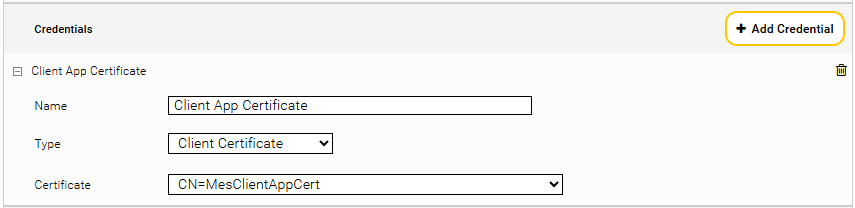
Entry | |
Name | Example: Client App Certificate |
Type | Client Certificate |
Certificate | Choose the previously created certificate via dropdown menu. |
Save the credential to finish this step. Now, the certificate credential can be used in datasource settings.