


Sure, you can handle it. But should you?
Let our experts manage the tech maintenance while you focus on your business.
Let our experts manage the tech maintenance while you focus on your business.
Web Connector V2
Installation and Configuration
Introduction
With the Web Connector you can index web content, such as web pages, and use it in Mindbreeze InSpire.
Configuration
Configuration of Index and Crawler
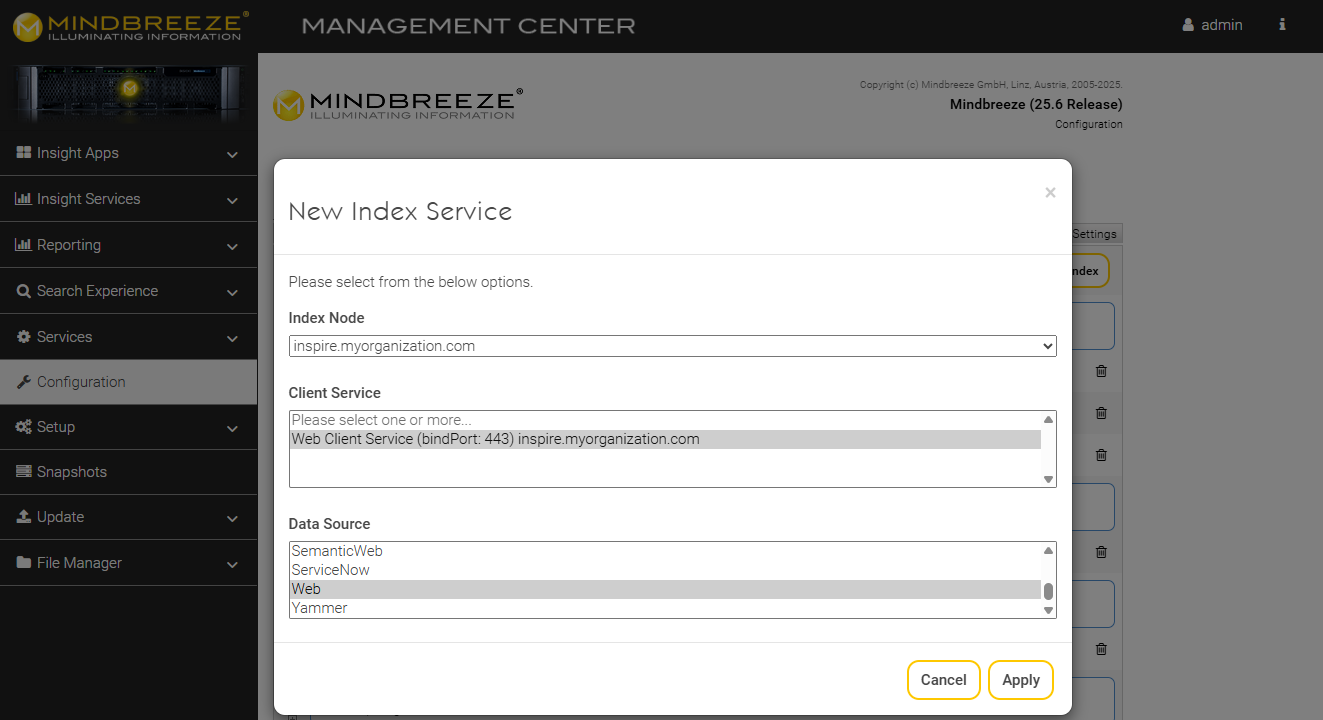
Go to the tab “Indices” and create a new index with “+ Add Index”. Then choose an “Index Node”, a “Client Service” and for the “Data Source” the option “Web”.
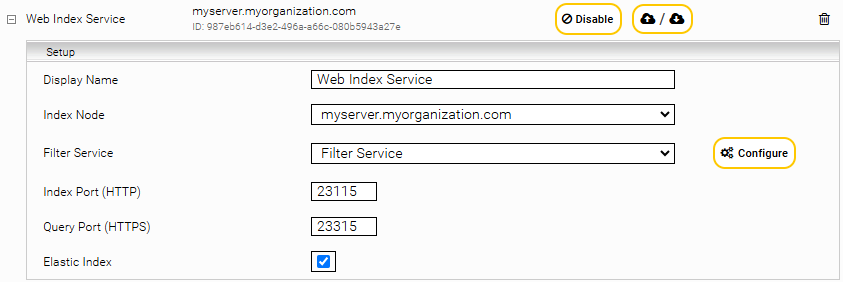
Adapt the “Display Name” of the index and choose the related Filter Service, if necessary.
With the setting “Crawler Interval” you can configure the interval between two crawl runs.
Section „Web Page“
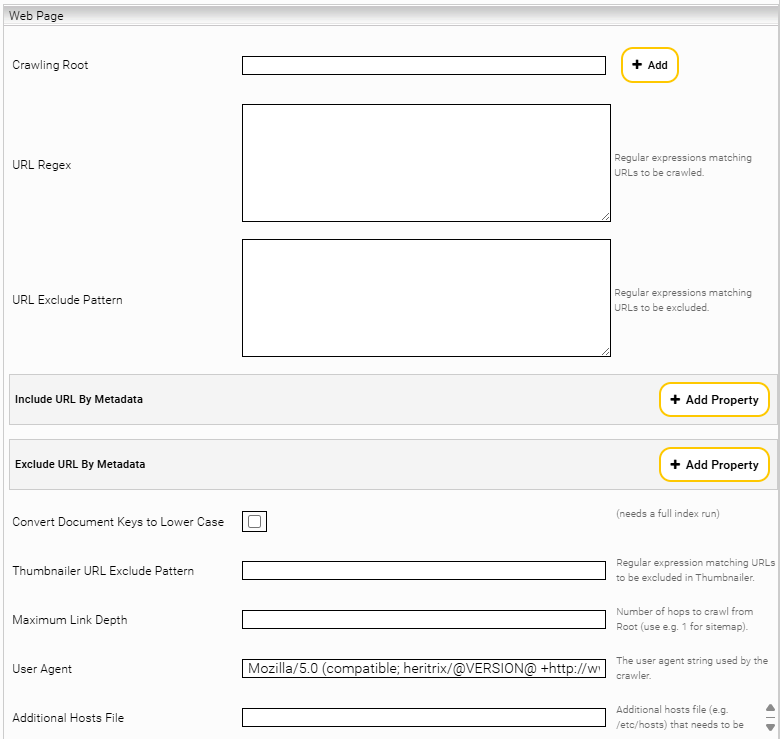
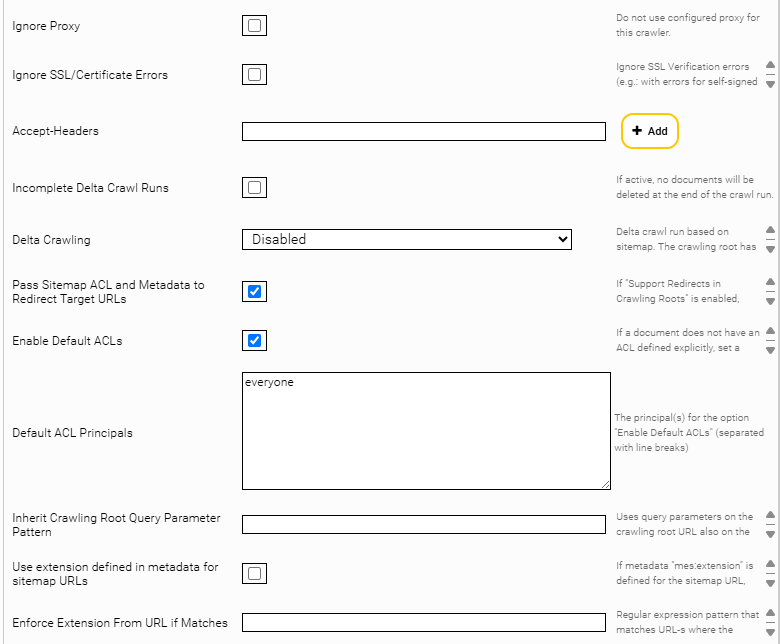
Description | Example/Default setting | |||||||||||||
Specifies one or more starting points (= roots) for the crawl. Each crawling root defines where the crawler begins. It is also possible to define multiple crawling roots to seed the crawl from different locations. The activation or deactivation of the setting “Delta Crawling” has the following effect on the defined crawling roots:
| Example: https://inspire.mindbreeze.com/blog/ | |||||||||||||
URL Regex | Defines a pattern with a regular expression, whereby links that match the pattern are crawled. The pattern must match the entire URL, including parameters. If left empty, all pages that have the same host and domain components as the “Crawling Root” are indexed (except rules specified in the settings “Include URL by Metadata” or “Exclude URL by Metadata”). Hint: Please note the following hierarchy when using certain settings simultaneously:
| Example: ^https?://example\.com/.*$ | ||||||||||||
URL Exclude Pattern | Specifies a pattern for URLs that should be excluded. URLs matching this pattern will not be crawled or used for further link extraction. The pattern must match the entire URL, including parameters. Hint: Please note the following hierarchy when using certain settings simultaneously:
| Example: ^https?://(?:www\.)?example\.com/(login|checkout).*$ | ||||||||||||
Include URL by Metadata | Can be used for the crawling of sitemaps to filter web pages based on metadata. If a page’s metadata matches the defined pattern, the page will be crawled. The following settings must be configured to define the pattern:
For more information on how to specify metadata in sitemaps, see the chapter “Mindbreeze-Extension of the Sitemaps.org Protocol”. Hint: Please note the following hierarchy when using certain settings simultaneously:
|
| ||||||||||||
Exclude URL by Metadata | Can be used for the crawling of sitemaps to filter web pages based on metadata. If a page’s metadata matches the defined pattern, the page will not be crawled. The following settings must be configured to define the pattern:
For more information on how to specify metadata in sitemaps, see the chapter “Mindbreeze-Extension of the Sitemaps.org Protocol”. Hint: Please note the following hierarchy when using certain settings simultaneously:
|
| ||||||||||||
Convert Document Keys to Lower Case | Converts document keys (header/mes:key metadatum) of the indexed documents/websites to lower case. | Default Value: Deactivated | ||||||||||||
Thumbnailer URL Exclude Pattern | Defines, via a pattern, a blacklist of URLs that the thumbnail generator should ignore. When a document is indexed and a thumbnail is created, any network request whose target URL matches the specified pattern is skipped, thereby preventing unwanted external calls. Attention: This setting only works with HTML documents. Also, make sure that the filter “FilterPlugin.JerichoWithThumbnails” is active for HTML files. | Example: ^https?://unwanted\.host\.com\/.*$ | ||||||||||||
Maximum Link Depth | Sets the maximum number of hops allowed from the crawling root to descendant pages. URLs discovered that would require more hops than this limit are ignored. A value of “1”, for example, would be appropriate for a sitemap. | Example: 5 | ||||||||||||
User Agent | Specifies the string “User-Agent” sent with every HTTP request which identifies the crawler to the web servers. | Default setting: Mozilla/5.0 (compatible; heritrix/@VERSION@ +http://www.mindbreeze.com) | ||||||||||||
Additional Hosts File | Specifies an additional hosts file that is used for DNS resolution while crawling. This setting can help when DNS resolution for certain web servers fails for network‑related reasons. The file must follow the same format as /etc/hosts. | Example: /data/hosts/custom-host-resolution | ||||||||||||
Ignore Proxy | With the activation of this setting, the crawler bypasses any configured proxy settings for requests. | Default setting: Disabled | ||||||||||||
Ignore SSL/Certificate Errors (Advanced) | With the activation of this setting, the crawler will accept invalid or self-signed SSL certificates. | Default setting: Disabled | ||||||||||||
Accept-Headers (Advanced) | Defines additional Accept-* Headers (e.g., Accept-Language, Accept-Encoding) that the crawler should send with HTTP requests. Use this setting specifically for content negotiation headers that tell the server which response formats are acceptable. The Accept Header only takes effect in the internal Heritrix and thus are ineffective for situations like Authentication Requests performed by the Crawler. | Example Value: Accept-Language:en-US,en;q=0.9 | ||||||||||||
Incomplete Delta Crawl Runs (Advanced) | With the activation of this setting, pages that are not reachable from the current Crawling Root are not deleted from the index at the end of the crawl run. To minimize the load of subsequent crawl runs on your site, you can provide a crawling root with links to updated pages only. Attention: Do not use this setting for sitemap delta crawling. For more information, see the chapter. “Sitemap Crawling Strategy”. | Default setting: Disabled | ||||||||||||
Delta Crawling |
Attention: This setting should not be enabled, if the setting “Allowed Delete Ratio” is enabled. | Default setting: Disabled | ||||||||||||
Pass Sitemap ACL and Metadata to Redirect Target URLs (Advanced) | With the activation of this setting, any sitemap URL that redirects to another URL will pass along its metadata and access control (ACL) settings to the redirect target URLs. Attention: This setting only works, if the setting “Support Redirects in Crawling Roots” is enabled as well. | Default setting: Enabled | ||||||||||||
Enable Default ACLs (Advanced) | When this setting is enabled, the crawler automatically assigns ACLs to web documents that do not already have explicitly defined ACLs (for example, via sitemaps that contain <mes:acl>). The ACLs that are applied in these cases are defined by the setting “Default ACL Principals”. If this setting is deactivated, documents without explicit ACLs are left without any access control information. If this setting is disabled while the setting “Default ACL Principals” is enabled, the ACL principal defined in “Default ACL Principals” (default: everyone) will be used. | Default setting: Enabled | ||||||||||||
Default ACL Principals (Advanced) | Specifies the principals that will be used for the default ACLs. Enter one principal per line. Multiple default ACL principals can be specified by separating them with line breaks. Please be aware of the following points:
| Default setting: everyone Example:
| ||||||||||||
Inherit Crawling Root Query Parameter Pattern (Advanced) | Enables the inheritance of URL query parameters from the crawling root to its child URLs (= discovered URLs). The value can be any regular expression that matches the names of the query parameters. If a child URL already has query parameters with the same name, they will be overwritten by the query parameter defined on the crawling root. This setting can, for example, be used on web pages that deliver different content depending on the query parameters. For example, the following crawling roots provide different content with the query parameter “location”:
Likewise, the following child URLs provide different content with the same query parameter “location”.
To apply the “location” query parameter from the crawling root to the child URLs, set this setting to the value “location.” | Example:
| ||||||||||||
Use extension defined in metadata for sitemap URLs | If the sitemap URL contains the metadata field mes:extension, the crawler will use the value of this metadata to enforce the file extension when processing the sitemap. | Default setting: Disabled | ||||||||||||
Enforce Extension From URL if Matches | Defines a pattern that is matched against crawled URLs. If a URL matches the pattern, the “Extension” metadata is derived from the URL itself rather than from the HTTP header “Content‑Type”. | Example: .*\\.(pdf|docx|xlsx)$ | ||||||||||||
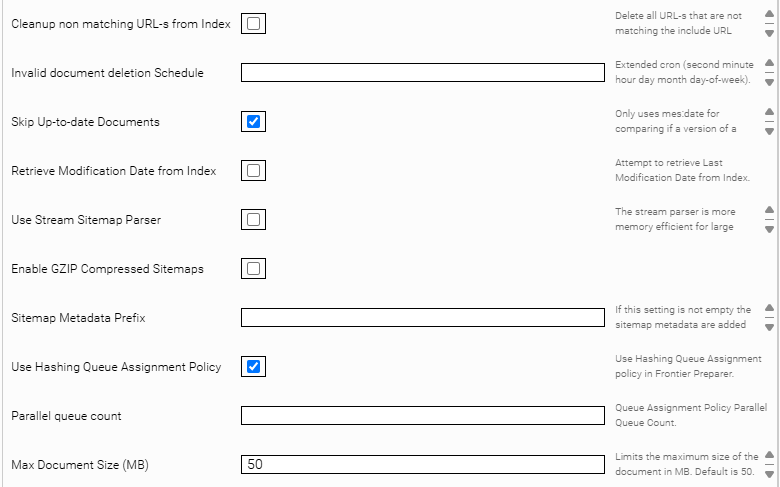
Cleanup non matching URL-s from Index | When this setting is enabled, all URLs are removed from the index that do not match the patterns configured in the setting “Include URL by Metadata” or that match the patterns configured in the setting “Exclude URL by Metadata”. | Default setting: Disabled | ||||||||||||
Invalid document deletion Schedule | Defines a cron-like schedule to delete invalid or outdated documents from the index. To define a schedule, an extended cron format must be used: second, minute, hour, day, month, day-of-week. | Example Value: 0 30 2 * * ? | ||||||||||||
Skip Up-to-date Documents (Advanced) | When this setting is enabled, a document will only be fully processed (= for example, content extracting, checking for content changes) if either mes:date (see here) or the access information has changed since the last crawl run. | Default setting: Enabled | ||||||||||||
Retrieve Modification Date from Index (Advanced) | When this setting is enabled, the index retrieves the existing modification date of an already indexed document before it is reindexed. This value is stored in the metadata field mes:existingmodificationdate. This enables the comparison between the previously indexed modification date and the currently indexed modification date of the document to gain insights into changes over time. | Default setting: Disabled | ||||||||||||
Use Stream Sitemap Parser (Advanced) | When this setting is enabled, a streaming parser for sitemaps is used, which is more memory-efficient for very large sitemaps, but less tolerant of XML errors. | Default setting: Disabled | ||||||||||||
Enable GZIP Compressed Sitemaps (Advanced) | When this setting is enabled, the crawler can automatically read and parse GZIP compressed sitemap files. | Default setting: Disabled | ||||||||||||
Sitemap Metadata Prefix (Advanced) | This setting is useful for preventing key collisions or namespace metadata. It defines a prefix that will be included in the keys used by the crawler when storing sitemap metadata. | Example:
| ||||||||||||
Use Hashing Queue Assignment Policy (Advanced) | When this setting is enabled, a hash-based algorithm is used to distribute the URIs over the queues. The hash-based distribution allows for faster crawls, but puts more load on the target server. If this setting is disabled, the URIs are distributed based on their host. | Default setting: Enabled | ||||||||||||
Parallel queue count (Advanced) | Defines the number of queues used for parallel crawling. Attention: This setting is only effective, when the setting „Use Hashing Queue Assignment Policy“ is enabled. | Default setting: 5 | ||||||||||||
Max Document Size (MB) (Advanced) | Defines the maximum allowed file size of documents that are downloaded. If a document is larger than the defined value, the document is truncated. The truncation can make documents invalid and should be treated with care (for example, invalid truncated PDF). A value of 0 means that no maximum file size is defined. | Default setting: 50 MB | ||||||||||||
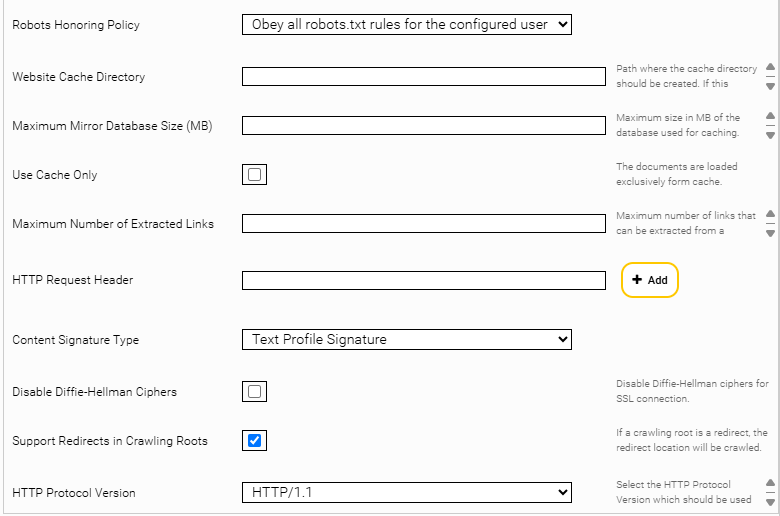
Robots Honoring Policy | Determines how the crawler handles robots.txt rules when accessing websites. The following options are available:
| Default setting: Obey all robots.txt rules for configured user | ||||||||||||
Website Cache Directory | Defines the path, where the crawler should create the cache directory. If the path is defined, the caching is enabled and HTTP communication is going to be stored/cached locally for later reuse. | Example: /data/web/cache | ||||||||||||
Maximum Mirror Database Size (MB) | Defines the maximum size of the local cache database in megabytes. | Default setting: 512 MB | ||||||||||||
Use Cache Only | When this setting is enabled, the crawler will only use cached content and will not perform any network requests. | Default setting: Disabled | ||||||||||||
Maximum Number of Extracted Links | Defines a maximum limit for the number of links that the crawler will extract from a single page. When this limit is reached, no additional links on that page are followed or queued for crawling. | Default setting: 6000 | ||||||||||||
HTTP Request Header | Defines any custom HTTP headers to include with each request (e.g. custom client headers). | Example:
| ||||||||||||
Content Signature Type (Advanced) | For this setting to work, a plugin is required. The plugin is available at https://www.mindbreeze.com/support/updates-pi. Can be used in combination with the filter “PostFilterTransformerPlugin.SignatureToKeyRewriter” to deduplicate documents based on their content rather than just their ID (mes:key). Here, the filter “PostFilterTransformerPlugin.SignatureToKeyRewriter“ must be configured as a Post-Filter-Transformer. The following options are available:
| Default setting: Text Profile Signature | ||||||||||||
Disable Diffie-Hellman Ciphers (Advanced) | When this setting is enabled, the crawler prevents the use of Diffie-Hellman key exchange ciphers for HTTPS connections. Enabling this setting improves security by avoiding weak implementations of Diffie-Hellman key exchange ciphers. However, it should be noted that connections to older servers that only support Diffie-Hellman key exchange ciphers may be prevented. | Default setting: Disabled | ||||||||||||
Support Redirects in Crawling Roots (Advanced) | When this setting is enabled, the crawler follows HTTP redirects when accessing the specified Crawling Roots. | Default setting: Enabled | ||||||||||||
HTTP Protocol Version (Advanced) | Defines the HTTP protocol version the crawler should use when fetching websites. Only changes the protocol version in the HTTP request. Features or performance are not affected. This setting should only be changed, when the target server rejects the currently selected version. | Default setting: HTTP/1.1 |
Sitemap Crawling Strategy
In order to use sitemaps according to the Sitemaps.org protocol, enable the setting “Delta Crawling” and locate the site’s root sitemap as the crawling root.
In this scenario the crawler retrieves the web pages that are listed in the sitemap exclusively. The property “lastmod” and “changefreq” of a sitemap URL entry are compared with the modification date of the already indexed web page (if exists). Furthermore, the changefreq is interpreted between crawling runs. With a precise sitemap a high-frequent recrawling strategy can be employed.
For the setting “Delta Crawling” two options are available:
Option | Description |
Sitemap-based Incomplete | With this option, the URL entries from the configured sitemaps will be crawled and the already indexed URLs, which are not found in the sitemaps, are left in the index. |
Sitemap-based Complete | With this option, the URL entries from the configured sitemaps will be crawled and the already indexed URLs, which are not found in the sitemaps, are deleted from the index. |
If the advanced setting “Pass Sitemap ACL and Metadata to Redirect Target URLs” is enabled and HTTP redirects are allowed in root URLs, the sitemap metadata and ACLs are also applied to the redirect target URLs.

- The advanced setting “Use Stream Sitemap Parser” is enabling a stream-based parsing of the sitemaps. This is more memory-efficient in case of large sitemap XML-s but is also less tolerant to XML errors in the sitemaps.

With the setting “Use extension defined in metadata for sitemap URLs”, the metadata “mes:extension” is adopted as the file extension, when the metadata is set for a sitemap URL.

The advanced setting “Sitemap Metadata Prefix” adds the configured prefix to each metadata extracted from the sitemap.

Sitemaps from the local filesystem are also supported, if a Delta Crawling mode is selected. Enter the File URL as Crawling Root. Only File URLs pointing to the data directory are permitted.
For example:
file:///data/sitemap.xml
Mindbreeze-Extension of the Sitemaps.org Protocol
With the Sitemaps.org protocol, web sites can be defined in a sitemap that should be crawled.
For example:
<?xml version="1.0" encoding="UTF-8"?>
<urlset xmlns="http://www.sitemaps.org/schemas/sitemap/0.9">
<url>
<loc>http://www.example.com/</loc>
<lastmod>2005-01-01</lastmod>
<changefreq>monthly</changefreq>
<priority>0.8</priority>
</url>
</urlset>
To define additional metadata and ACLs, a Mindbreeze extension is available.
The following XML tags are additionally available:
XML Tag | Description | ||||||||
<mes:meta> (Optional) | Can be defined multiple times within an <url> tag to define metadata. The following attributes are available:
Example: <url> <loc>https://www.mindbreeze.com</loc> <mes:meta key="breadcrumb"> <mes:value>Mindbreeze</mes:value> <mes:value>Home</mes:value> </mes:meta> | ||||||||
<mes:value> (Required) | Can be defined multiple times within a <mes:meta> tag to define one or more values for a metadata.
Example: <mes:meta key="breadcrumb"> <mes:value>Mindbreeze</mes:value> <mes:value>Home</mes:value> </mes:meta> Notes:
| ||||||||
<mes:annotated> (Optional) | Can be defined multiple times within a <mes:meta> tag to define one or more annotated values for a metadata. Example: <mes:meta key="parent"> <mes:annotated> <mes:value>Main parent</mes:value> <mes:ctx-annotation metakey="related" aggregatable="false">Fabasoft</mes:ctx-annotation> <mes:ref-annotation metakey="parentkey">abcd.1.2.3.4</mes:ref-annotation> </mes:annotated> </mes:meta> | ||||||||
<mes:value> (Required) | Must be defined once within a <mes:annotated> tag to define the value that is to be annotated. Only string values are supported for annotated values. Example: <mes:meta key="parent"> <mes:annotated> <mes:value>Main parent</mes:value> <mes:ctx-annotation metakey="related" aggregatable="false">Fabasoft</mes:ctx-annotation> <mes:ref-annotation metakey="parentkey">abcd.1.2.3.4</mes:ref-annotation> </mes:annotated> </mes:meta> | ||||||||
<mes:ctx-annotation> (Optional) | Can be defined multiple times within a <mes:annotated> tag to add annotations to the value. The following attributes are available:
Example: <mes:meta key="parent"> <mes:annotated> <mes:value>Main parent</mes:value> <mes:ctx-annotation metakey="related" aggregatable="false">Fabasoft</mes:ctx-annotation> <mes:ref-annotation metakey="parentkey">abcd.1.2.3.4</mes:ref-annotation> </mes:annotated> </mes:meta> | ||||||||
<mes:ref-annotation> (Optional) | Can be defined multiple times within a <mes:annotated> tag to add reference annotations to the metadata. The following attribute is available:
Example: <mes:meta key="parent"> <mes:annotated> <mes:value>Main parent</mes:value> <mes:ctx-annotation metakey="related" aggregatable="false">Fabasoft</mes:ctx-annotation> <mes:ref-annotation metakey="parentkey">abcd.1.2.3.4</mes:ref-annotation> </mes:annotated> </mes:meta> | ||||||||
<mes:acl> (Optional) | Can be used within a <mes:meta> tag to define ACLs. Example: <mes:acl> <mes:require>cn=domain users,cn=users,dc=myorganization,dc=com</mes:require> <mes:deny>unauthorized</mes:deny> <mes:grant>cn=marketing,cn=users,dc=myorganization,dc=com</mes:grant> </mes:acl> Attention: This tag is only considered, when the setting "Enable Default ACLs" is activated. Please also note, that ACLs from sitemaps are not compatible with “Access Check Rules”. | ||||||||
<mes:grant> (Optional) | Can be defined multiple times within a <mes:acl> tag to grant access for a principal. Example: <mes:acl> <mes:require>cn=domain users,cn=users,dc=myorganization,dc=com</mes:require> <mes:deny>unauthorized</mes:deny> <mes:grant>cn=marketing,cn=users,dc=myorganization,dc=com</mes:grant> </mes:acl> | ||||||||
<mes:deny> (Optional) | Can be defined multiple times within a <mes:acl> tag to deny access for a principal. Example: <mes:acl> <mes:require>cn=domain users,cn=users,dc=myorganization,dc=com</mes:require> <mes:deny>unauthorized</mes:deny> <mes:grant>cn=marketing,cn=users,dc=myorganization,dc=com</mes:grant> </mes:acl> | ||||||||
<mes:require> (Optional) | Can be defined multiple times within a <mes:acl> tag to define in which groups a user must be. The tag <mes:require> does not grant access in general, but denies the access, if the user is not in the group. Thus, after the last <mes:require> tag an additional <mes:grant> tag is necessary to grant access. Example: <mes:acl> <mes:require>cn=domain users,cn=users,dc=myorganization,dc=com</mes:require> <mes:deny>unauthorized</mes:deny> <mes:grant>cn=marketing,cn=users,dc=myorganization,dc=com</mes:grant> </mes:acl> |
Example:
<?xml version="1.0" encoding="UTF-8" ?>
<urlset xmlns="http://www.sitemaps.org/schemas/sitemap/0.9"
xmlns:xsi="http://www.w3.org/2001/XMLSchema-instance"
xsi:schemaLocation="http://www.sitemaps.org/schemas/sitemap/0.9
http://www.sitemaps.org/schemas/sitemap/0.9/sitemap.xsd"
xmlns:mes="tag:mindbreeze.com,2008:/indexing/interface">
<url>
<loc>https://www.mindbreeze.com</loc>;
<lastmod>2020-08-22T09:03:56+00:00</lastmod>
<!-- additional metadata -->
<mes:meta key="breadcrumb">
<mes:value>Mindbreeze</mes:value>
<mes:value>Home</mes:value>
</mes:meta>
<mes:meta key="keywords" aggregatable="true">
<mes:value>Search Appliance</mes:value>
<mes:value>InSpire</mes:value>
<mes:value>Semantic Search</mes:value>
<mes:value>Artificial Intelligence</mes:value>
<!-- more -->
</mes:meta>
<mes:meta key="article_ean" aggregatable="true">
<mes:value format="number">4104420230262</mes:value>
<mes:value format="number">0883298182906</mes:value>
<mes:value format="number">4056489314097</mes:value>
<!-- more -->
</mes:meta>
<mes:meta key="parent">
<mes:annotated>
<mes:value>Main parent</mes:value>
<mes:ctx-annotation metakey="related" aggregatable="false">Fabasoft</mes:ctx-annotation>
<mes:ref-annotation metakey="parentkey">abcd.1.2.3.4</mes:ref-annotation>
</mes:annotated>
</mes:meta>
<!-- ACL -->
<mes:acl>
<mes:require>cn=domain users,cn=users,dc=myorganization,dc=com</mes:require>
<mes:deny>unauthorized</mes:deny>
<mes:grant>cn=marketing,cn=users,dc=myorganization,dc=com</mes:grant>
</mes:acl>
</url>
</urlset>
Removal of high priority documents
At the end of a crawl run, inaccessible documents are removed from the index. This deletes all documents that were not successfully downloaded and indexed.
If the advanced setting "Incomplete Delta Crawl Runs" is enabled, no documents will be deleted at the end of the crawl run.

Additionally, the advanced setting “Invalid document deletion Schedule” can be used to define a schedule which is used to remove inaccessible documents from the index independent of crawl runs.
To do this, an extended cron expression must be entered in the field. Documentation and examples of cron expressions can be found here.

For example, the schedule “0 */45 * * * ?” defines that a deletion run is executed every 45 minutes.
This schedule is only active if the crawler schedule permits it.
The following documents are deleted during the crawl run:
- Not found documents (HTTP Status 404, 310)
- Redirections to those documents (e.g. HTTP Status 301, 307)
If the setting “Cleanup non matching URL-s from Index” is activated, the following documents will be removed additionally:
- Documents that match with the setting „URL Exclude Pattern“
- Redirections to those documents (e.g. HTTP Status 301, 307)

If the setting "Cleanup non matching URL-s from Index" is enabled and the advanced setting "Invalid document deletion Schedule" has not been defined, the deletion process is started with each crawl run. If it is a delta crawl run, only documents that should be ignored according to the setting "URL Exclude Pattern" will be deleted. Otherwise inaccessible documents will also be deleted (HTTP status 404, 410, 301, 307).
A crawl run is a delta crawl run, when:
- the advanced setting "Incomplete Delta Crawl Runs" is enabled.
- the option "Sitemap-based Incomplete" is selected for the setting "Delta Crawling".
Parallel processing of URLs
When the setting “Use hashing queue assignment policy” is enabled, the input URLs are distributed to multiple parallel processing queues based on a hash function. The number of processing queues can be set with the setting “Parallel Queue Count”.
If the setting “Use hashing queue assignment policy” is not enabled, the URLs are distributed based on their hostname.

Section “Content Extraction”
Description | Example/Default setting | |||||||||||||||||||||
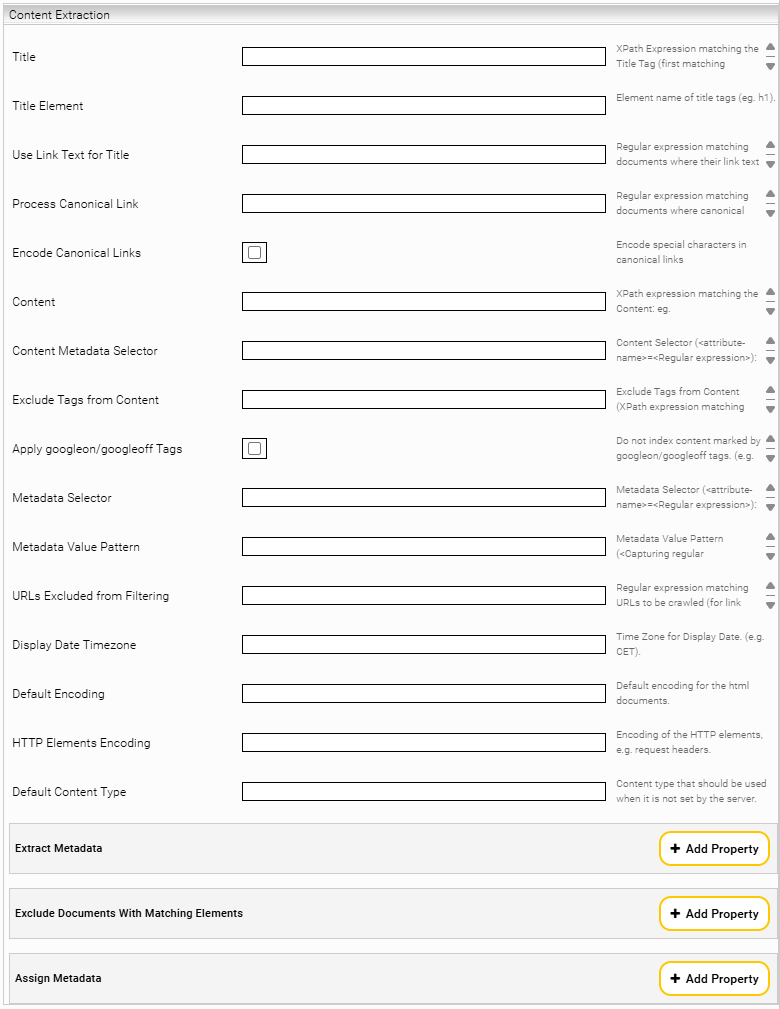
Title | XPath expression matching the tag “title” (first matching element is chosen). Attention: This setting only works with HTML documents and the following filters:
| Example: //h1 | ||||||||||||||||||||
Title Element (Advanced) | Element name of title tags. Attention: This setting only works with HTML documents and the following filters:
| Example: h1 | ||||||||||||||||||||
Use Link Text for Title (Advanced) | This setting allows you to override the default document title detected by the web crawler and instead use the text of the hyperlink pointing to the page as the document’s title. To use this setting, a regex pattern must be defined. The crawler will only apply this behavior to pages whose URLs match the pattern. This allows selective application of link-text titles for specific sites or URL structures. | Example: ^https://example\.com/articles/.* | ||||||||||||||||||||
Process Canonical Link | By defining a regular expression, you can specify which URLs should have their URL taken from the canonical tag. That URL is then used as the index key and stored as a URL metadata field. | Example: ^https?://example\.com/.*$ | ||||||||||||||||||||
Encode Canonical Links | When this setting is enabled, the URLs extracted from the “canonical” tag are URL‑encoded before they are stored in the index. This is useful because the URLs are then saved in the same format as when you copy them from a browser. Browsers typically encode URLs automatically. Hint: To ensure proper operation, it is recommended to clean the index and perform a re‑indexing. | Default setting: Disabled | ||||||||||||||||||||
Content | XPath expression matching the content. Attention: This setting only works with HTML documents and the following filters:
| Example: //div[@class='content'] | ||||||||||||||||||||
Content Metadata Selector (Advanced) | This setting is deprecated and the use of XPath is recommended. | - | ||||||||||||||||||||
Exclude Tags from Content | Exclude tags from content. The defined XPath expression is matching with HTML tags. Attention: This setting only works with HTML documents and the following filters:
| Example: //div[@class='index'] | ||||||||||||||||||||
Apply googleon/googleoff Tags | When this setting is enabled, content marked by googleon/googleoff tags will not be indexed. Attention: This setting only works with HTML documents and the following filters:
| Default setting: Disabled | ||||||||||||||||||||
Metadata Selector (Advanced) | This setting is deprecated. | - | ||||||||||||||||||||
Metadata Value Pattern (Advanced) |
| - | ||||||||||||||||||||
URLs Excluded from Filtering (Advanced) | Defines the URLs that the crawler should fetch and follow for link extraction, without filtering, processing, or indexing their content. | Example: ^https://example\.com/archives/.* | ||||||||||||||||||||
Display Date Timezone | Defines the time zone for “Display Date”. Attention: This setting only works with HTML documents and the following filters:
| Example: CET | ||||||||||||||||||||
Default Encoding | Defines the default character encoding for HTTP content, when no encoding is defined in the header of the HTTP content. | Default setting: ISO_8859_1 | ||||||||||||||||||||
HTTP Elements Encoding | Defines the character encoding for HTTP protocol elements like request headers, query parameters and possibly cookies. | Default setting: ISO_8859_1 | ||||||||||||||||||||
Default Content Type | Defines a fallback MIME type when the HTTP response does not include a Content-Type header. | Example: text/html | ||||||||||||||||||||
Extract Metadata | Extracts metadata from HTML documents. To extract metadata, the following settings must be configured in the property:
| Example:
| ||||||||||||||||||||
Exclude Documents With Matching Elements | Defines an XPath expression, where the document is not indexed, when the expression matches with the document. To exclude documents, the following setting must be configured in the property:
Attention: This setting only works with HTML documents and the following filters:
| Example: /div[@class=’noindex’] | ||||||||||||||||||||
Assign Metadata (Advanced) | This setting is deprecated. | - |
Excluding pages from indexing
With the setting “URLs Excluded from Filtering”, you can keep already found pages out of the index with the definition of a regular expression.
A typical use case is, when you want to index certain pages that are reachable only through indirect paths, but you don’t want those indirect paths themselves to be indexed. By entering a regular expression in the setting “URLs Excluded from Filtering”, you can exclude those indirect paths.
The following settings can be used to influence the crawling direction:
Influence on the crawling direction | |
Crawling Root | Defines which URL is used to start crawling. |
URL Regex | Defines which URLs are followed up. |
URL Exclude Regex | Defines which URLs are excluded and not followed up. |
URLs Excluded from Filtering (Advanced) | Defines which crawled documents are to finally be indexed. |
Section „JavaScript Basic Settings“
By default, the Web Connector downloads HTML documents and extracts the content directly. If web pages load the content dynamically with JavaScript, the content is not included in the original HTML document. By default, JavaScript is ignored and therefore the content cannot be extracted.
Description | Example/Default setting | |
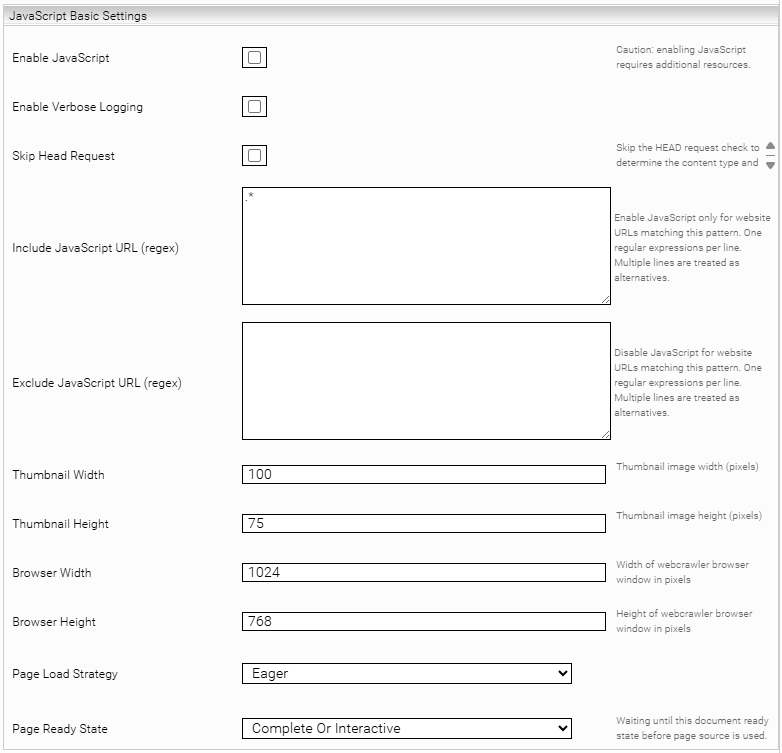
Enable JavaScript | Enables JavaScript processing. Hint: When this setting is enabled, the connector consumes significantly more resources. This results in slower crawling and higher memory usage. Therefore, it is recommended to enable the setting only on a single crawler and to restrict JavaScript processing with the subsequent settings „Include JavaScript URL (regex)“ and „Exclude JavaScript URL (regex)“ to only those URLs that actually require JavaScript. | Default setting: Disabled |
Enable Verbose Logging (Advanced) | Enables advanced logging for diagnostic purposes. | Default setting: Disabled |
Skip Head Request (Advanced) | When this setting is enabled, the HEAD request is skipped. The HEAD request is used to determine whether the JavaScript on a web page should be processed. By default, JavaScript is evaluated only for text/HTML content. | Default setting: Disabled |
Include JavaScript URL (regex) | Defines a list of regular expressions that determine which URLs should have JavaScript processed. If the setting “Exclude JavaScript URL (regex)” is also configured, the settings are applied in the following order:
Hint: It is recommended to configure this setting when the setting “Enable JavaScript” is enabled, to minimize resource consumption. | Default setting: .* Example: ^https://example\.com/.* |
Exclude JavaScript URL (regex) | Defines a list of regular expressions that determine which URLs must not have JavaScript processed. If the setting “Include JavaScript URL (regex)” is also configured, the settings are applied in the following order:
Hint: It is recommended to configure this setting when the setting “Enable JavaScript” is enabled, to minimize resource consumption. | Example: ^https://example\.com/login.* |
Thumbnail Width (Advanced) | Defines the width of the generated thumbnails in pixels. | Default setting: 100 |
Thumbnail Height (Advanced) | Defines the height of the generated thumbnails in pixels. | Default setting: 75 |
Browser Width (Advanced) | Defines the width of the browser window that is used for crawling. | Default setting: 1024 |
Browser Height (Advanced) | Defines the height of the browser window that is used for crawling. | Default setting: 768 |
Page Load Strategy (Advanced) | Defines the strategy used to load web pages. Attention: This setting is intended for internal use only and should not be changed. | Default setting: Eager |
Page Ready State (Advanced) | Defines from which point a webpage is considered fully loaded. Attention: This setting is intended for internal use only and should not be changed. | Default setting: Complete Or Inactive |
Example Configuration
The following web pages should be indexed, with only one page requiring JavaScript for indexing:
- https://mysite.com/products (requires JavaScript)
- https://mysite.com/internal (does not require JavaScript)
In addition to enabling the setting “Enable JavaScript”, the setting “Include JavaScript URL (regex)” must also be configured to minimize resource usage. The value needed for this example is:
https:\/\/mysite\.com\/products\.*
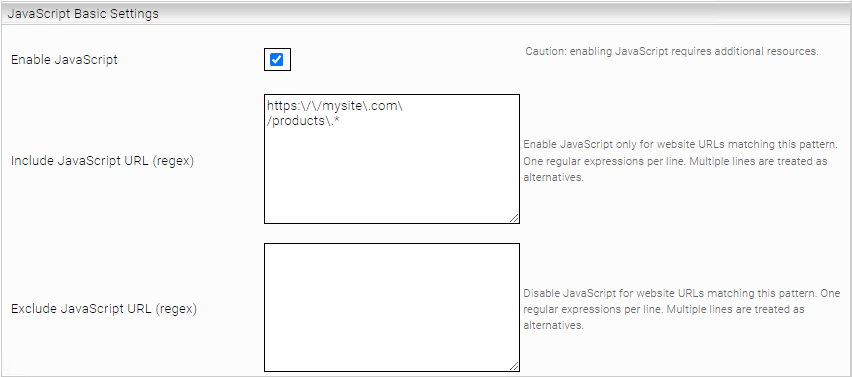
This allows the page ”https://mysite.com/products” to be indexed with JavaScript, while ”https://mysite.com/internal” will be indexed without using JavaScript, keeping resource consumption to a minimum.
Security mechanisms and security exceptions
Since web pages can contain arbitrary JavaScript code and the code is executed in the connector, the usual security mechanisms known from web browsers, such as sandboxing and CORS, are used. Furthermore, the networking interfaces of the JavaScript code are strongly limited for security reasons.
In particular, only network requests to URLs with the same hostname are allowed. This should not be a problem for most use cases. For example, if the page https://mysite.com/products (hostname mysite.com) is indexed, which should load the page JavaScript from external URLs, e.g. https://ajax.googleapis.com/ajax/libs/angularjs, then the network requests to the hostname ajax.googleapis.com will be blocked, since this is a different hostname. All blocked (and successful) network requests are displayed in app.telemetry.
To view this, go to the Management Center, then to the main menu item “Reporting” and then to “Telemetry Details”. There you continue to “Applications” and finally to the "Network Requests" log pool. Make sure that the columns "URL", "Status" and "Status Description" are displayed.
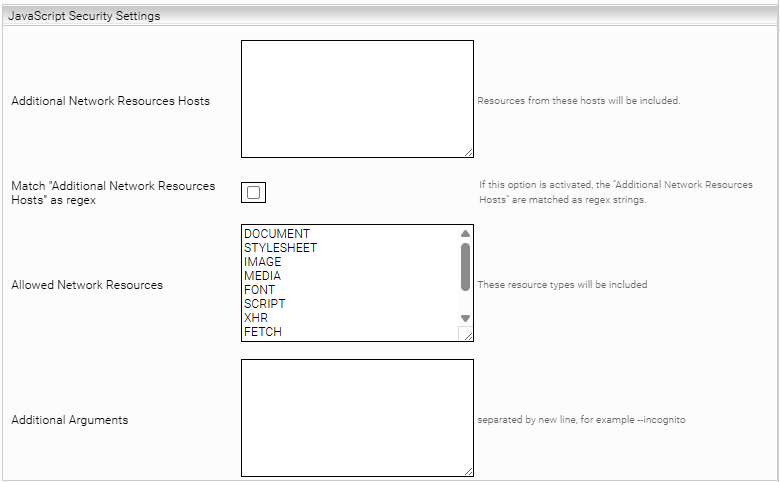
If external network requests are absolutely necessary to display the content of the web page, it is possible to define security exceptions using the advanced setting "Additional Network Resources Hosts" in the section “JavaScript Security Settings”. This setting can define a list of hostnames that are allowed in any case.
In the example from above you can set the value ajax.googleapis.com for "Additional Network Resources Hosts". This will now allow network requests such as
https://ajax.googleapis.com/ajax/libs/angularjs.
Limitations of the setting "Enable JavaScript"
- Indexing web pages with the setting "Enable JavaScript" enabled is associated with various functional limitations.
- Currently, the following features cannot be used together with the setting "Enable JavaScript":
- Network proxy with authentication (user, password).
- Indexing web pages with NTLM or Kerberos authentication
- Indexing of single-page applications (SPA) that use URL anchors
- Indexing of webpages that load a high number of resources (Maximum value for the setting “Page Load Timeout” is 20 seconds)
- Indexing of webpages which are secured with 2-factor-authentication.
Section „JavaScript Script Settings“ (Advanced Settings)
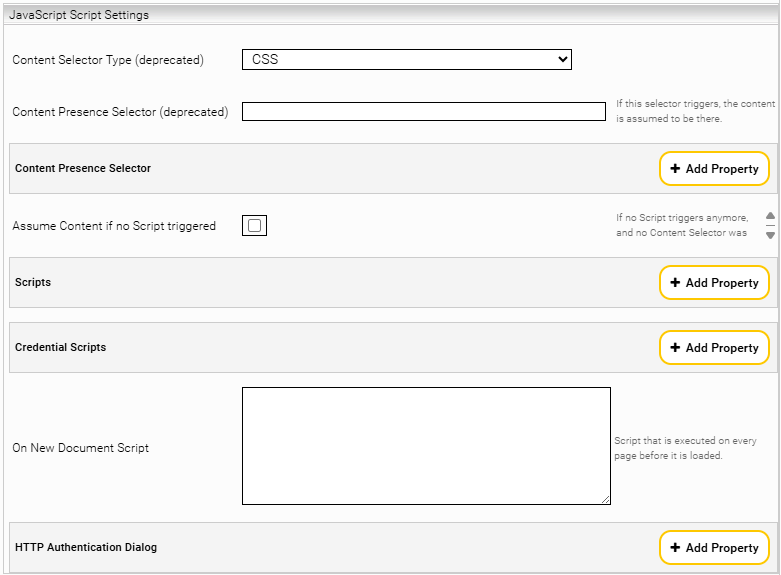
Description | Example/Default setting | |
Content Selector Type (deprecated) | Same behavior as the setting “Content Selector Type” in the Content Presence Selector. | - |
Content Presence Selector (deprecated) | Same behavior as the setting “Content Presence Selector” in the Content Presence Selector. | - |
Content Presence Selector The following settings must be configured to add a Content Presence Selector. | ||
URL Patterns (regex) | Defines the regex pattern used to match website URLs. If a URL matches the pattern, the Content Presence Selector is applied. | Example: https://site-where-the-selector-should-trigger.com/site-with-content.* |
Content Selector Type | Defines the type of the Content Presence Selector. Available options:
| Default setting: CSS |
Content Presence Selector | Defines a CSS or XPath expression that determines whether the targeted content is present. Hint: When defining the CSS or XPath expression, single quotation marks must be used. Attention: This setting must not be used if the setting “Assume Content if no Script triggered” is enabled. | Example: //*[@id='content'] |
Assume Content if no Script triggered | When this setting is enabled, the content is assumed to be loaded even though no “Script Trigger Selector” is activated. Attention: This setting must not be used if the setting “Content Presence Selector” is configured. | Default setting: Disabled |
Scripts The following settings must be configured to add a script | ||
Script Name | Defines a name for the script that is used for identification in the logs. | Example: CookieBanner |
URL Patterns (regex) | Defines the regex pattern used to match website URLs. If a URL matches the pattern, the script will be executed. If the setting is empty, it will be interpreted as “.*“. | Example: https://site-with-cookie-banner.com/cookies.* |
Script Selector Type | Defines the type of the Script Trigger Selector. Available options:
| Default setting: CSS |
Script Trigger Selector | Defines a CSS or XPath expression that determines when to trigger the script. Hint: When defining the CSS or XPath expression, single quotation marks must be used. | Example: //*[@id='cookieBannersId'] |
Script | Defines the script to be executed when the Script Trigger Selector is active. | Example: document.getElementById('okBtn').click() |
Credential Scripts The following settings must be configured to add a credential script | ||
Script Name | Defines a name for the credential script that is used for identification in the logs. | Example: LoginScript |
Allowed Hostnames | Defines the hostnames on which the script should be executed. Pattern matching is not supported for this setting. | Example: some.trusted.sites.com |
Script Selector Type | Defines the type of the Script Trigger Selector. Available options:
| Default setting: CSS |
Script Trigger Selector | Defines a CSS or XPath expression that determines when to trigger the script. Hint: When defining the CSS or XPath expression, single quotation marks must be used. | Example: //*[@id='username'] and //*[@id='password'] |
Script | Defines the Script, which is to be executed when the Script Trigger Selector is active. In contrast to typical scripts, you can use the provided object “mesCredential”. This object contains the variables domain, username, and password, which are populated based on the selected credential:
| Example: document.getElementById('username').value = mesCredential.username; document.getElementById('username').value = mesCredential.password; document.getElementById('submit').click() |
Credential | Defines the credential that should be used in the script and that was created in the “Network” tab. Currently, the following credential types are supported:
| Example: WEB |
On New Document Script | Defines a script that is executed once, directly before a page loads. This setting is useful for use cases where standard scripts are executed too late. | Example: // Override window.open to block popups window.open = function(...args) { console.log("Popup blocked: window.open was called, but no action was taken.", args); // Optionally, you could store the args for analysis or logging return null; // Prevent any popup from opening }; |
HTTP Authentication Dialog The following settings must be configured to add credentials for browser HTTP authentication dialogs. | ||
Allowed Hostnames | Defines a list of hostnames on which the credentials are allowed to be used. To specify multiple hostnames, separate each hostname with a line break. | Example: some.trusted.sites.com |
Credential | Defines the credential that should be sent to the respective hostnames and that was created in the “Network” tab. | Example: WEB |
Section “JavaScript Security Settings” (Advanced Settings)
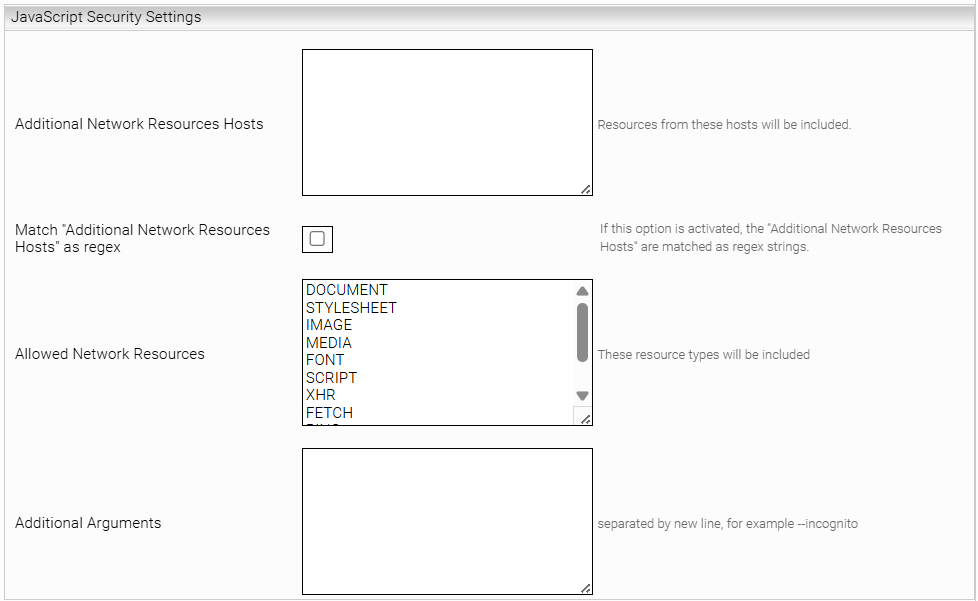
Description | Example/Default setting | |
Additional Network Resources Hosts | Defines a list of hostnames to which network requests are allowed. Using patterns for this setting is only possible, when the setting “Match "Additional Network Resources Hosts" as regex” is enabled. | Example: additional.trusted.host.com trustful.host.com allowed.to.load.here.at mindbreeze.com |
Match "Additional Network Resources Hosts" as regex | When this setting is enabled, hostnames in the setting “Additional Network Resources Hosts” are interpreted as regex patterns. Each script must have at least one URL pattern defined. | Default setting: Disabled |
Allowed Network Resources | Defines a list of network resources to which requests are allowed. | Default setting: DOCUMENT STYLESHEET IMAGE MEDIA FONT SCRIPT XHR FETCH PING CSPVIOLATIONREPORT OTHER |
Additional Arguments | This setting is intended for the internal use and should not be changed. | - |
Section “JavaScript Performance Settings” (Advanced Settings)
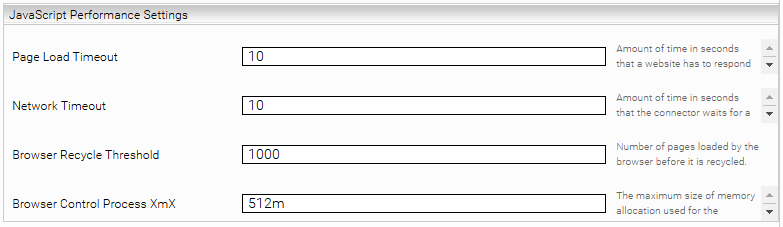
Description | Example/Default setting | |
Page Load Timeout | Defines in seconds, how much time is allowed for the loading and executing of JavaScript on a web page. If this time is exceeded, the processing is aborted. The maximum value for this setting is 20 seconds. Hint: The value of this setting should always be lower than the value of the setting “Network Timeout”. | Default setting: 10 |
Network Timeout | Defines in seconds, how long the connector may wait for a response from the website. Hint: The value of this setting should always be bigger than the value of the setting “Page Load Timeout”. | Default setting: 10 |
Browser Recycle Threshold | Defines the number of web pages that are processed with an internal browser instance before the instance is automatically terminated and restarted to conserve system resources. | Default setting: 1000 |
Browser Control Process XmX | Defines the maximum heap memory of the browser control process. | Default setting: 512m |
Section “Resource Parameters” (Advanced Settings)
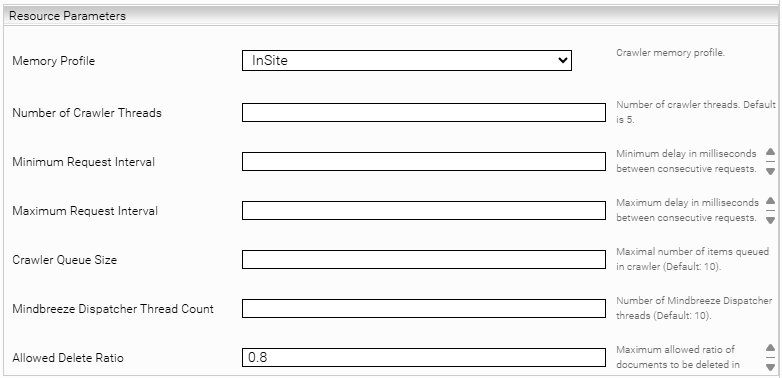
Description | Example/Default setting | |
Memory Profile | Defines the amount of memory allocated to the crawler. The profile “InSite” uses the same amount of memory as other crawlers. The profile “InSpire” is recommended when the crawler needs more memory or when it must crawl data with very large file sizes. | Default setting: InSite |
Number of Crawler Threads | Defines the number of threads crawling the specified web pages and subpages in parallel. | Example: 5 |
Minimum Request Interval | Defines the minimum value in seconds for the delay between consecutive crawler requests. | Example: 100 ms |
Maximum Request Interval | Defines the maximum value in seconds for the delay between consecutive crawler requests. | Example: 200 ms |
Crawler Queue Size | Defines the maximum number of documents in the queue that will be sent to the index. | Example: 10 |
Mindbreeze Dispatcher Thread Count | Defines the number of threads that send data to the index in parallel. | Example: 10 |
Allowed Delete Ratio | Defines the maximum allowable proportion of documents to be deleted relative to the number of documents in the index. This setting is intended to prevent data loss in the event of network failures or accidental configuration changes. For example, if more than 0.8 or 80 % of the documents would be deleted in a single crawl run, the crawl run is automatically aborted to avoid data loss. Attention: This setting is only effective when the setting “Delta Crawling” is disabled. | Default setting: 0.8 (= 80%) |
Authentication
This chapter describes the various authentication methods for the Web Connector. The methods that can be used to index content that is located behind a login are also discussed.
Form-based authentication
This section deals with the mechanism of the form-based login, which is essentially a mechanism that allows you to perform a login using a login form and to manage user sessions using HTTP cookies.
Form-based login simulates the user behavior and browsing behavior required to automate such logins.
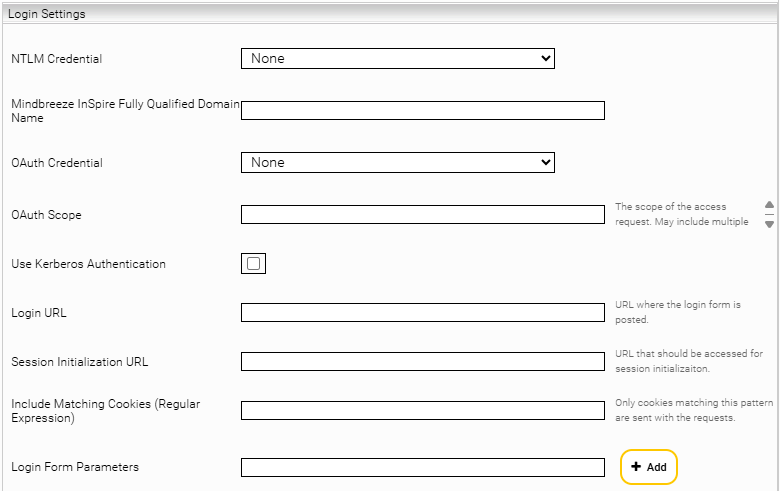
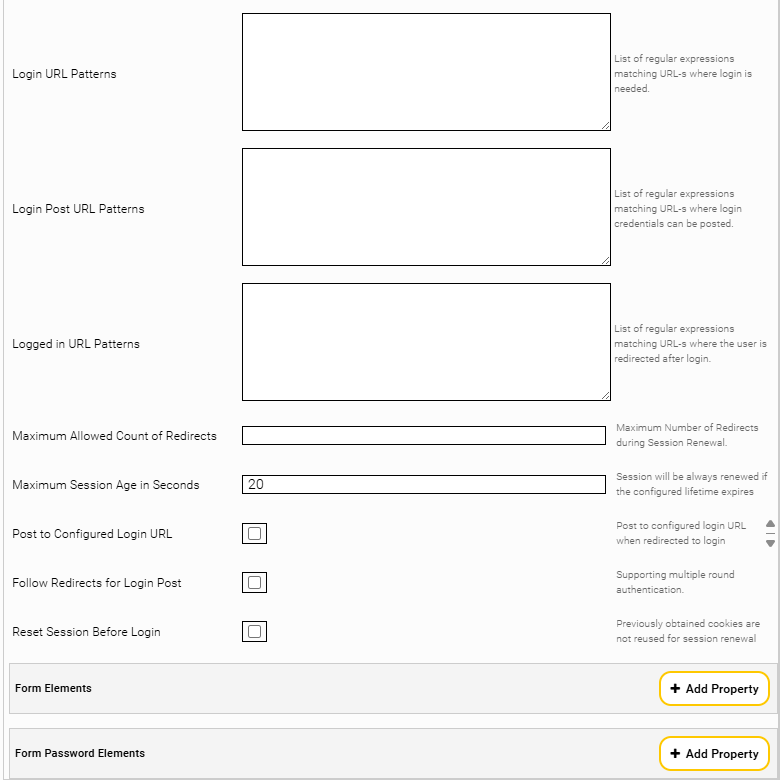
In this chapter, two scenarios are described. Both scenarios are based on the settings shown in the figure below.
Description | Example/Default setting | |||||||||||||||||
NTLM Credential | The NTLM credential to be used. To create the credential, go to the “Network” tab. | Example: NTLM Credential | ||||||||||||||||
Mindbreeze InSpire Fully Qualified Domain Name | The Hostname which is used for NTLM authenticaton. | Example: my-inspire.mindbreeze.com | ||||||||||||||||
OAuth Credential | The OAuth credential to be used. To create the credential, go to the “Network” tab. | Example: OAuth Credential | ||||||||||||||||
OAuth Scope (Advanced) | Configure this setting to request specific permissions for OAuth authentication. | Example: api://1123-4566-77789/.default | ||||||||||||||||
Use Kerberos Authentication | Enables the Kerberos authentication. | Default setting: Disabled | ||||||||||||||||
Login URL | If a static form-based login with session management is to be configured, the URL to be used must be entered in this setting. For instance, this URL can be determined using the debugging functions of the web browser. | Example: http://webserver.myorganization.com/login | ||||||||||||||||
Session Initialization URL | In some cases it is necessary to retrieve a dynamically generated cookie from a specific URL and send it along already with the form-based login. An HTTP GET request is executed on the URL entered here and the cookies generated from this are sent along with the actual login. For complex form-based authentication, this URL is opened at the beginning so that it can then be dynamically redirected. The cookies received in the process are retained for the session. | Example: http://webserver.myorganization.com/protected/documents | ||||||||||||||||
Include Matching Cookies (Regular Expression) | Defines the restriction that determines which cookies are to be stored for session management. For the definition of the restriction, a regular expression must be put in that contains the names of the cookies that are to be enabled and used for the session. | Example: .*JSESSIONID.* | ||||||||||||||||
Login Form Parameters | If hidden fields are set in the login form, they can be listed here. They are extracted and sent along with the login request. A typical example of this is the dynamically generated FormID, which is returned as a hidden parameter from the Web server. | Example: formid | ||||||||||||||||
Login URL Patterns | All redirects that correspond to the regular expressions specified here are tracked during the login process. | Example: http:\/\/webserver\.myorganization\.com\/protected\/login.* | ||||||||||||||||
Login Post URL Patterns | When tracking the redirects that correspond to the regular expressions specified here, all collected form parameters are sent using an HTTP POST request. | Example: http:\/\/webserver\.myorganization\.com\/protected\/login\/loginform.* | ||||||||||||||||
Logged in URL Patterns | If you are forwarded to an URL that matches the regular expressions specified here, the login process was successful. | Example: http:\/\/webserver\.myorganization\.com\/protected\/documents.* | ||||||||||||||||
Maximum Allowed Count of Redirects | This can be used to set the maximum depth of the tracked redirects. | Example: 5 | ||||||||||||||||
Maximum Session Age in Seconds | Maximum session age in seconds. | Default setting: 20 | ||||||||||||||||
Post to Configured Login URL | If this setting is enabled, redirects to a "Login Post URL" are replaced by an HTTP POST request to the URL configured under "Session Initialization URL". | Default setting: Disabled | ||||||||||||||||
Follow Redirects for Login Post | If this setting is enabled, all redirects are tracked after the HTTP POST request to the login URL, and all cookies are collected until no further redirect is requested or the authentication is successful. | Default setting: Disabled | ||||||||||||||||
Reset Session Before Login (Advanced) | If this setting is set, old session cookies are not used to create a new session when a session expires. | Default setting: Disabled | ||||||||||||||||
Form Elements | The names and values of the elements that are used in the HTTP POST request on the login URL have to be specified in this setting. In doing this, the name of the HTML form field should be entered. All password fields have to be entered under Password Elements. Configure the following settings to add a “Form Element”:
| Example:
| ||||||||||||||||
Form Password Elements | The names and values of the elements that are used in the HTTP POST request on the login URL have to be specified in this setting. In doing this, the name of the HTML form field should be entered. All password fields have to be entered under Password Elements. Configure the following settings to add a “Form Password Element”:
| Example:
|
Static form-based login with session management
In this scenario, a POST request is sent to a specific URL to trigger the authentication. The following settings are to be considered:
- Login URL
- Session Initialization URL
- Include Matching Cookies (Regular Expression)
- Follow Redirects for Login Post
- Form Elements
- Form Password Elements
Complex form-based login
If the previous scenario is not sufficient, the following settings can be used:
- Session Initialization URL
- Login Form Parameters
- Login URL Patterns
- Login Post URL Patterns
- Logged in URL Patterns
- Maximum Allowed Count of Redirects
- Post to Configured Login URL
- Reset Session Before Login
- Maximum Session Age in Seconds
Configuration of the NTLM credential
To use NTLM authentication, a NTLM credential is needed. Configure the credential in the “Network” tab like this:
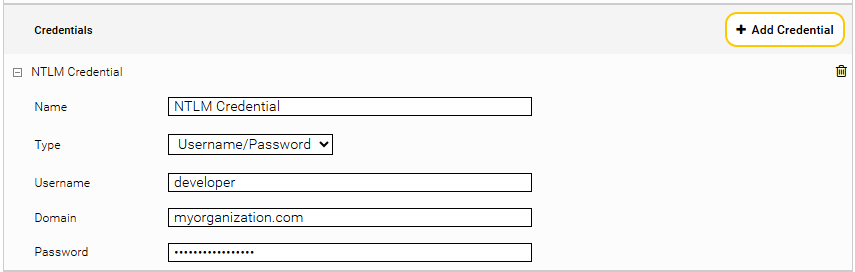
Entry | |
Name | Example: NTLM Credential |
Type | Username/Password |
Username | Example: developer |
Domain | Example: myorganization.com |
Password | Example: my-secure-password-123! |
After this, go back to the “Indices” tab, go to the index, select the NTLM Credential in the setting “NTLM Credential” in the section “Login Settings”.

Configuration of the OAuth2 credential
To use OAuth2 authentication, an OAuth2 credential is needed. Configure the credential in the “Network” tab like this:
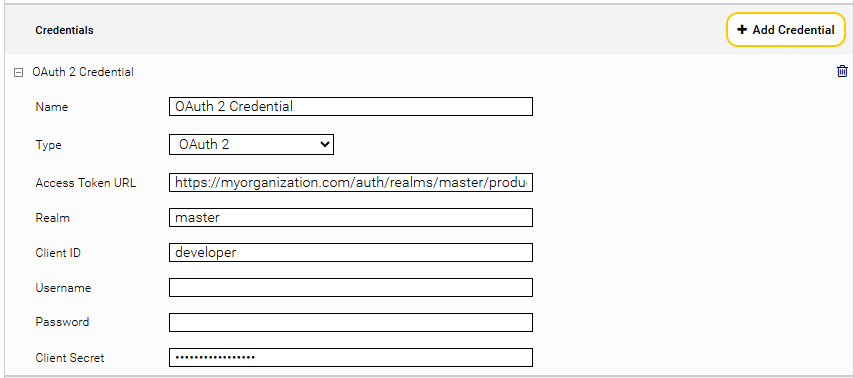
Entry | |
Name | Example: OAuth 2 Credential |
Type | OAuth 2 |
Access Token URL | Example: https://myorganization.com/auth/realms/master/product |
Realm | Example: Master |
Client ID | Example: developer |
Username | - |
Password | - |
Client Secret | The Client Secret that is provided by the Identity Provider (Microsoft Azure, Keycloak etc.). |
For the grant type “client credentials” it is sufficient to configure the following settings:
- Realm
- Client ID
- Client Secret
For the grant type “password” you have to configure the following settings:
After the credential is configured, go back to the “Indices” tab, go to the index, select the OAuth 2 Credential in the setting “OAuth Credential” in the section “Login Settings”.
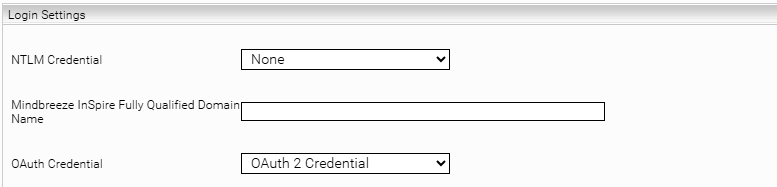
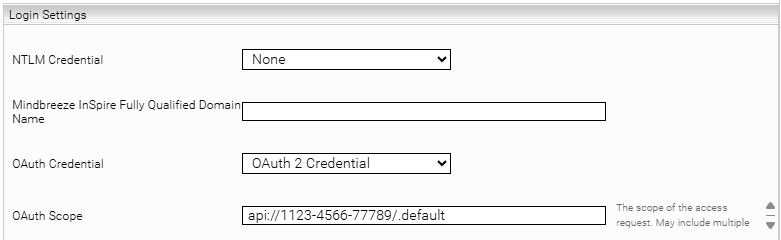
To request specific permissions for OAuth authentication, configure the setting “OAuth Scope”:
Authorization basic header
The basic authentication following RFC 2617 is the most common type of HTTP authentication. The Web server requests an authentication using:
WWW-Authenticate: Basic realm="RealmName"
where RealmName is a description of the protected area. The browser then searches for the username/password for this URL and queries the user if necessary. The browser then sends the authentication Base64-encoded and in the form Username: Password to the server using the authorization header.
Example:
Authorization: Basic d2lraTpwZWRpYQ==
To set the header specified in the example above, it has to be configured in the setting “HTTP Request Header” in the section “Web Page” in the data source of the index:

Click “Save” to save the configured HTTP request header.
Kerberos Authentication
Kerberos authentication uses the Negotiate protocol to authenticate HTTP requests. The Web connector is thus able to index websites that can only be accessed with Kerberos authentication.
The following steps are required to activate Kerberos authentication:
- Make sure there is a working Kerberos setup on the appliance. See Kerberos Authentfizierung for this.
- Generate a “Connector” keytab and assign it to the Web connector. See Connector Authentifizierung Kerberos
- Enable the setting “Use Kerberos Authentication” in the section “Login Settings” of the data source of the index.
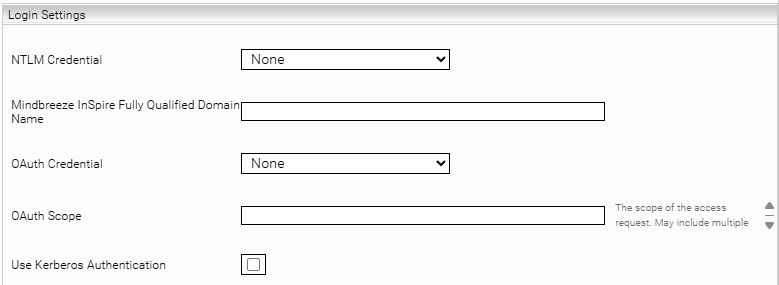
Note: Kerberos does not currently support web thumbnails; they are automatically disabled.
Configuration of the filter
There are multiple environment variables.
Cache Settings for Thumbnail Generation
The variable MES_THUMBNAIL_CACHE_LOCATION specifies a directory for the network cache used during thumbnail generation. The maximal cache size can be defined using the variable MES_THUMBNAIL_CACHE_SIZE_MB. Only if both variables are set, a cache is created and used.
Example (Linux):
export MES_THUMBNAIL_CACHE_LOCATION=/tmp/thumbcache
export MES_THUMBNAIL_CACHE_SIZE_MB=20
On Windows, the variables can be defined in the Control Panel.
Timeout Settings for Thumbnail Generation
Using the variable MES_THUMBNAIL_TIMEOUT a timeout value for thumbnail generation can be redefined. Otherwise the default value of 50 seconds will be used.
Example (Linux):
export MES_THUMBNAIL_TIMEOUT=10
On Windows, the variables can be defined in the Control Panel.
Extract Main Content with alternative Filter Mode
Crawling of e.g. news sites often indexes useless content like menus or footers. The HTML Filter can be switched in an alternative Mode, which can index only meaningful content, using heuristics.
There are multiple ways for configuration:
Filter Plugin Properties
Click on the tab “Filters” and activate “Advanced Settings”.
In the section “Global Filter Plugin Properties” select “FilterPlugin.JerichoWithThumbnails(…)” and click on “Add”.

Expand the new Entry “FilterPlugin.JerichoWithThumbnails” and set the Value “Use Boilerpipe Extractor” to the Value “Article”.
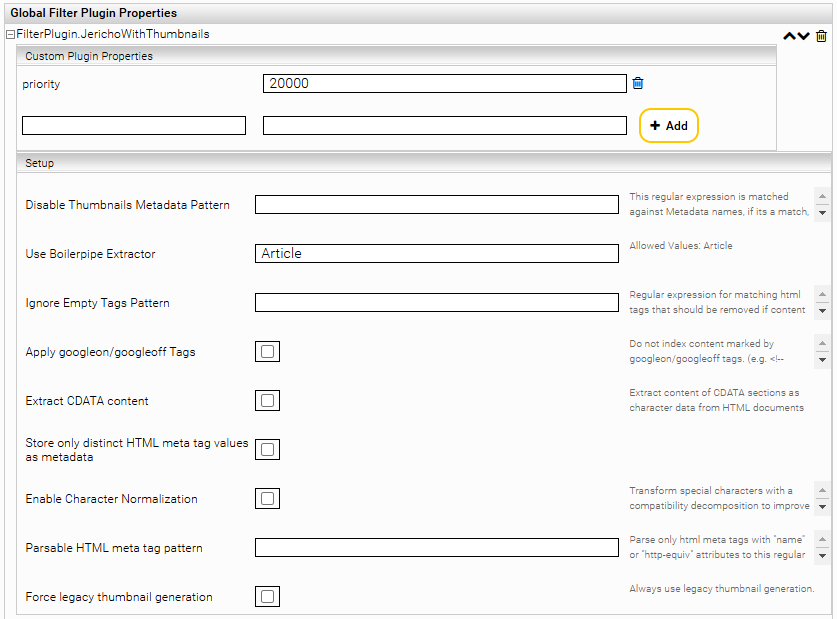
Afterwards you have to reindex.
Datasource XPath Metadata
Extract the affected Index. In section “Data Source”, subsection “Extract Metadata” click on the plus symbol “Add Property”.
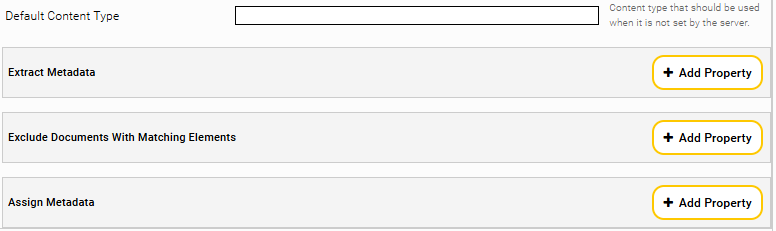
Within the new section “Extract Metadata” put in as name: htmlfilter:extractor and XPath: "Article" (Important: with double quotes).
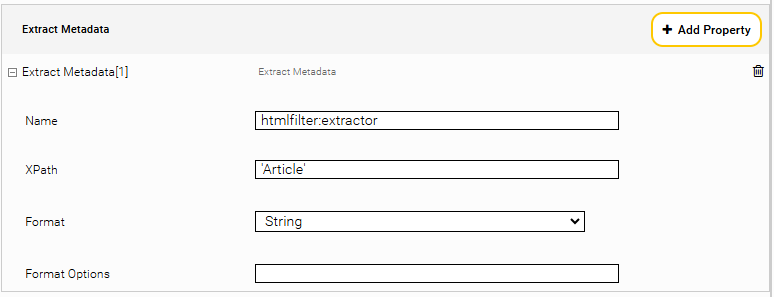
Afterwards you have to reindex.
Ignore empty HTML Elements
If documents with empty HTML-elements appear within the index, you can define a regular Expression to remove these elements while filtering.
There are multiple ways for configuration:
Filter Plugin Properties
Click on the tab “Filters” and activate “Advanced Settings”.
In Section “Global Filter Plugin Properties” select “FilterPlugin.JerichoWithThumbnails(…)” and click on “Add”.
Expand the new Entry “FilterPlugin.JerichoWithThumbnails” and set the Value “Ignore Empty Tags Pattern” to e.g. the Value “^(ul|li|a|div)$”. This means that empty HTML-elements ul, li, a and div will be removed, if empty.
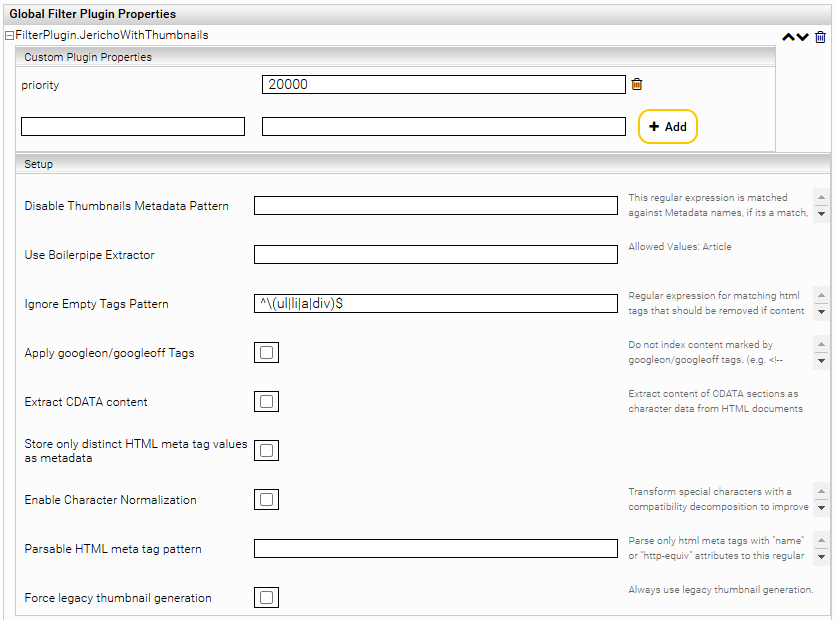
Afterwards you have to reindex.
Datasource XPath Metadata
In the Tab “Indices” activate “Advanced Settings”.
Expand the affected index. In section “Data Source”, Subsection “Extract Metadata” click on the plus-symbol “Add Composite Property”.
In the new Section “Extract Metadata” put in as Name: htmlfilter:ignoreEmptyCharactersElementTagsPattern and as XPath: "^(ul|li|a|div)$" (Important: double Quotes). This means that empty HTML-elements ul, li, a and div will be removed, if empty.
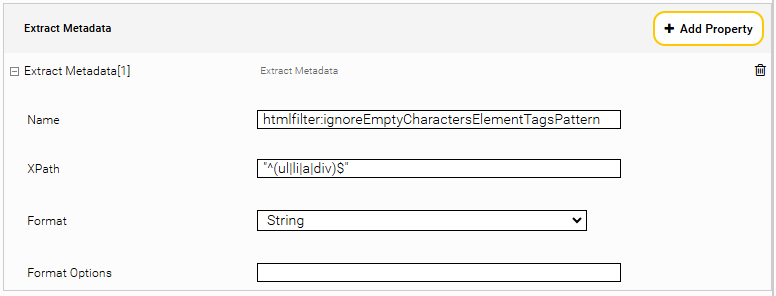
Afterwards you have to reindex.
Using Googleon/Googleoff tags
Google GSA defines a mechanism in order to be able to mark and designate certain sections as "non-searchable" within a single HTML site. Consequently, these designated sections are not indexed, although the rest of the page is. The marks take the form of HTML comments that are set in pairs.
The following tags are supported:
“fish“ and “dog“ are indexed; “shark“ is not | |
fish <!--googleoff: snippet-->shark <!--googleon: snippet-->dog | |
fish <!--googleoff: all-->shark <!--googleon: all-->dog | |
<!--googleoff: anchor--><A href=subsite.html>shark </A>dog <!--googleon: anchor--> | “dog“ is indexed; “shark“ is not |
There are several options for configuration.
System-wide use with global filter plugin properties
To enable this function, click on the tab "Filters" and then cadminlick "Advanced Settings".
Under "Global Filter Plugin Properties", select "FilterPlugin.JerichoWithThumbnails (...)" and click "Add".
Expand the new entry "FilterPlugin.JerichoWithThumbnails" and tick the "Apply googleon/googleoff tags" setting. Then re-index.
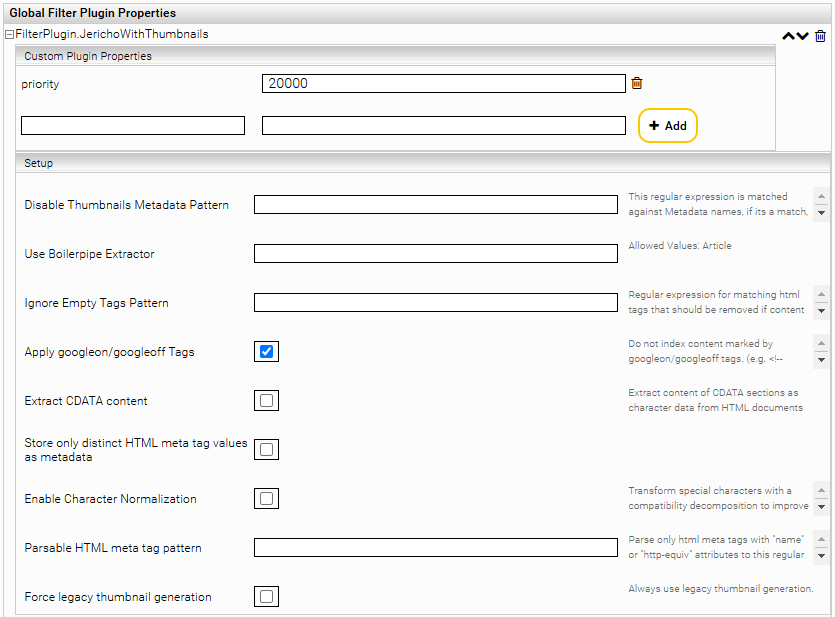
Use in Web Connector
In the section “Content Extraction“, check the "Apply googleon/googleoff Tags" setting. Then re-index.
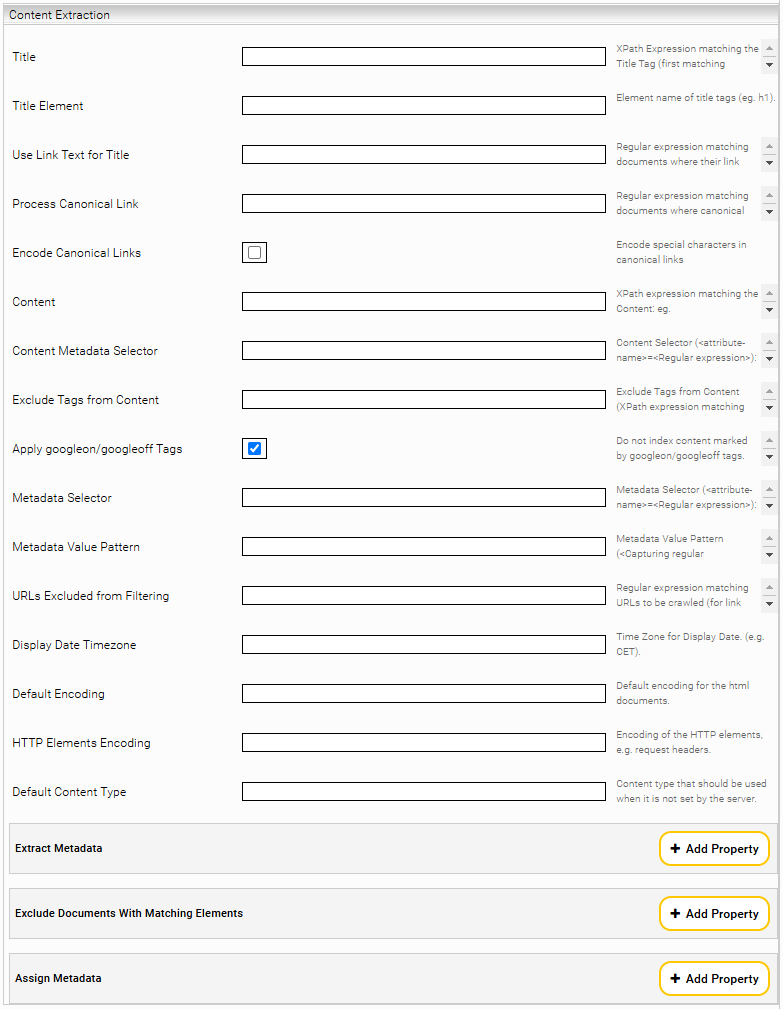
Crawler-specific use with Datasource XPath Metadata
In the tab “Indices“, enable "Advanced Settings".
Expand the relevant index. In the "Data Source" section, "Extract Metadata" sub-section, click the "Add Composite Property" plus-sign icon.
In the new section "Extract Metadata", enter the name: htmlfilter:applygoogleonoff and set the XPath to: "true" (important: in quotation marks).
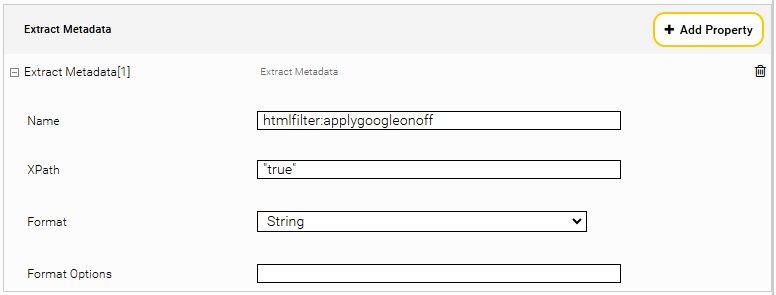
Then re-index.
Extracting Text from CDATA Sections
Optionally, the Jericho HTML filter can extract Text from CDATA sections of HTML documents. One can activate this feature either globally on the filter service level by setting global filter properties, or pro document, by setting a specific metadata by the crawler.
System-wide use with global filter plugin properties
To enable this function, click on the tab "Filters" and then click "Advanced Settings".
Under "Global Filter Plugin Properties", select "FilterPlugin.JerichoWithThumbnails (...)" and click "Add".
Expand the new entry "FilterPlugin.JerichoWithThumbnails" and tick the "Extract CDATA contents" setting. Then re-index.
Crawler-specific use with Datasource XPath Metadata
Enable "Advanced Settings" and then go to the tab “Indices“.
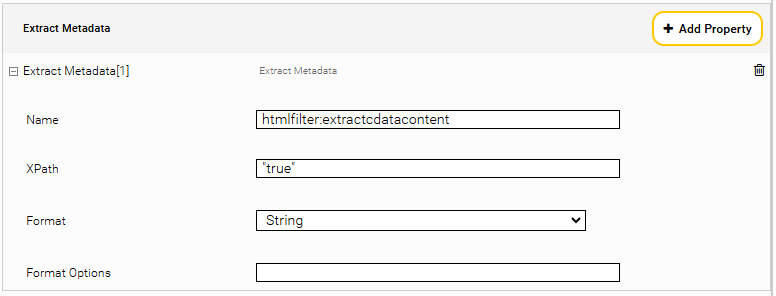
Expand the relevant index. In the section "Content Extraction", go to the setting "Extract Metadata" and click "Add Property".
Then, enter the name “htmlfilter:extractcdatacontent” and set the XPath to "true" (Important: in quotation marks).
Normalizing special characters
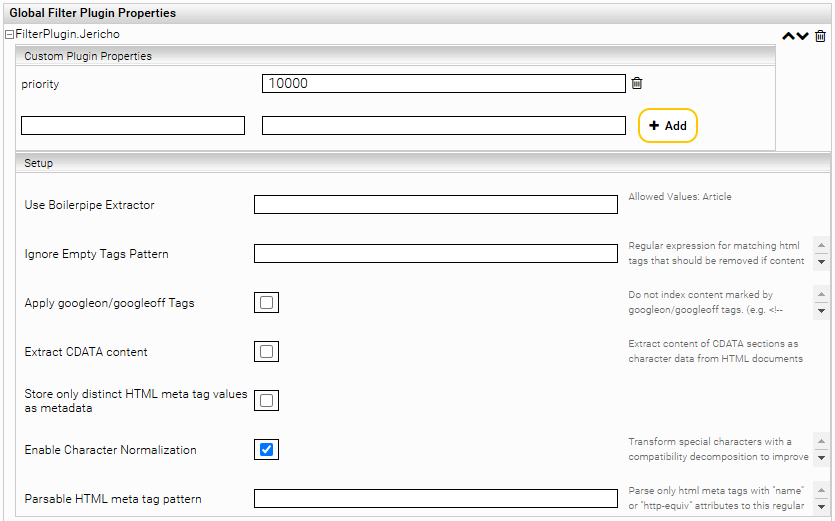
Using the setting "Enable Character Normalization", special characters such as “ü“,“â“ are transformed into a normal format (compatibility decomposition), which facilitates searching.
This setting can produce better results if the client service setting "Query Expansion for Diacritic Term Variants" does not deliver the desired quality.
Authorized Web (Authorization)
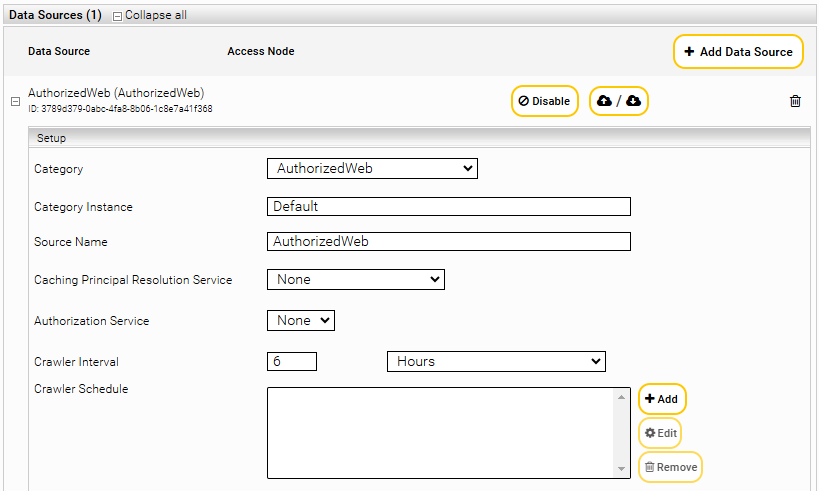
Configuring authorization settings are only possible through the category “AuthorizedWeb”.
In order to configure these settings the category of data source should be change from “Web” to “AuthorizedWeb”.
The rest of settings in “AuthorizedWeb” category are similar to those described in previous chapters.
Configuration of Access Check Rules
To configure an Access Rule, set the following settings:
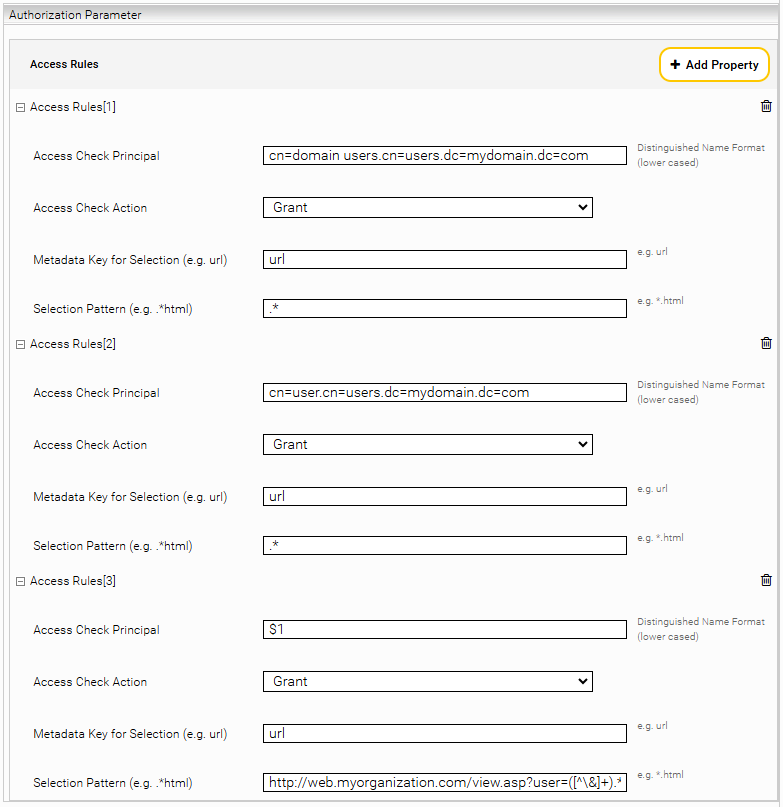
Description | Entry | |
Access Check Principal | The username can be defined in the following formats:
Group names can only be in the “distinguished name” format. Additionally a capture group from the selection pattern can be referenced here (See Access Rules[3]). | Example: cn=domain users.cn=users.dc=mydomain.dc=com |
Access Check Action | Controls the access type, where the following options are available:
| Example: Grant |
Metadata Key for Selection (e.g. url) | A metadata name used by access rule. Can be empty, which selects all documents. | Example: url |
Selection Pattern (e.g. .*html) | A regular expression. Can be empty, which selects all documents. | Example: .* |
Access Check Rules are only applied, if there are no ACLs defined in the Sitemap (If Sitemaps are used).
When sitemaps are used as the crawling root and Access Check rules are configured that do not reference the “url” metadata, a delta indexing will re‑index all documents that could potentially contain ACL changes (even if their modification date is not newer).
Crawl policies and rules
Supported compression types
The Mindbreeze Web Connector supports documents that are compressed with the following compression types (content encoding):
- gzip
- x-gzip
- deflate
- identity
- none
Order of include/exclude rules
The crawler applies URL filtering in a specific sequence to determine which pages are processed in the following order:
- URL Regex – Only URLs matching this regular expression are considered. If left empty, all pages under the same host and domain as the Crawling Root are included.
- URL Exclude Pattern – URLs matching this pattern are removed from the candidate list and will not be crawled.
- Include/Exclude by Metadata – Remaining pages are filtered based on sitemap metadata. Pages are either included or excluded depending on the configured metadata name and pattern.
How is mes:date determined?
The value for mes:date is determined in the following order:
- It is checked if the XML-attribute "Last-Mod" was extracted during the crawlrun. (Only available for sitemaps)
- It is checked if the XML-attribute "Publication Date" was extracted during the crawlrun. (only available for sitemaps)
- If the two previous two attributes are not available (e.g. if a normal website and not a sitemap is crawled), the more recent date from the following two values is used:
- The Last-Modified date from the response headers.
- If a <meta> tag with the attribute “http-equiv” (<meta http-equiv="Last-Modified" content="...">) is found inside the HTML document, the date is extracted from this tag. The function of this tag is equivalent to the "Last Modified" header.
If no mes:date could be set (e.g. if response header parsing failed), the current timestamp while retrieving the document is used as a fallback.
Appendix A
Heritrix Status Codes
Each crawled URI gets a status code. This code (or number) indicates the result of a URI fetch in Heritrix. Codes ranging from 200 to 599 are standard HTTP response codes. Other Heritrix status codes are listed below.
Fehlercode | Beschreibung |
1 | Successful DNS lookup. |
0 | Fetch never tried (perhaps protocol unsupported or illegal URI). |
-1 | DNS lookup failed. |
-2 | HTTP connect failed. |
-3 | HTTP connect broken. |
-4 | HTTP timeout. |
-5 | Unexpected runtime exception. See runtime-errors.log. |
-6 | Prerequisite domain-lookup failed, precluding fetch attempt. |
-7 | URI recognized as unsupported or illegal. |
-8 | Multiple retries failed, retry limit reached. |
-50 | Temporary status assigned to URIs awaiting preconditions. Appearance in logs may be a bug. |
-60 | URIs assigned a failure status. They could not be queued by the Frontier and may be unfetchable. |
-61 | Prerequisite robots.txt fetch failed, precluding a fetch attempt. |
-62 | Some other prerequisite failed, precluding a fetch attempt. |
-63 | A prerequisite (of any type) could not be scheduled, precluding a fetch attempt. |
-404 | Empty HTTP response interpreted as a 404. |
-3000 | Severe Java Error condition occured such as OutOfMemoryError or StackOverflowError during URI processing. |
-4000 | "Chaff" detection of traps/content with negligible value applied. |
-4001 | The URI is too many link hops away from the seed. |
-4002 | The URI is too many embed/transitive hops away from the last URI in scope. |
-5000 | The URI is out of scope upon reexamination. This only happens if the scope changes during the crawl. |
-5001 | Blocked from fetch by user setting. |
-5002 | Blocked by a custom processor. |
-5003 | Blocked due to exceeding an established quota. |
-5004 | Blocked due to exceeding an established runtime |
-6000 | Deleted from Frontier by user. |
-7000 | Processing thread was killed by the operator. This could happen if a thread is a non-responsive condition. |
-9998 | Robots.txt rules precluded fetch. |